The Tuning Loop
DeviceFit is fundamentally an experiment workflow, not a static scanner or magic optimizer.
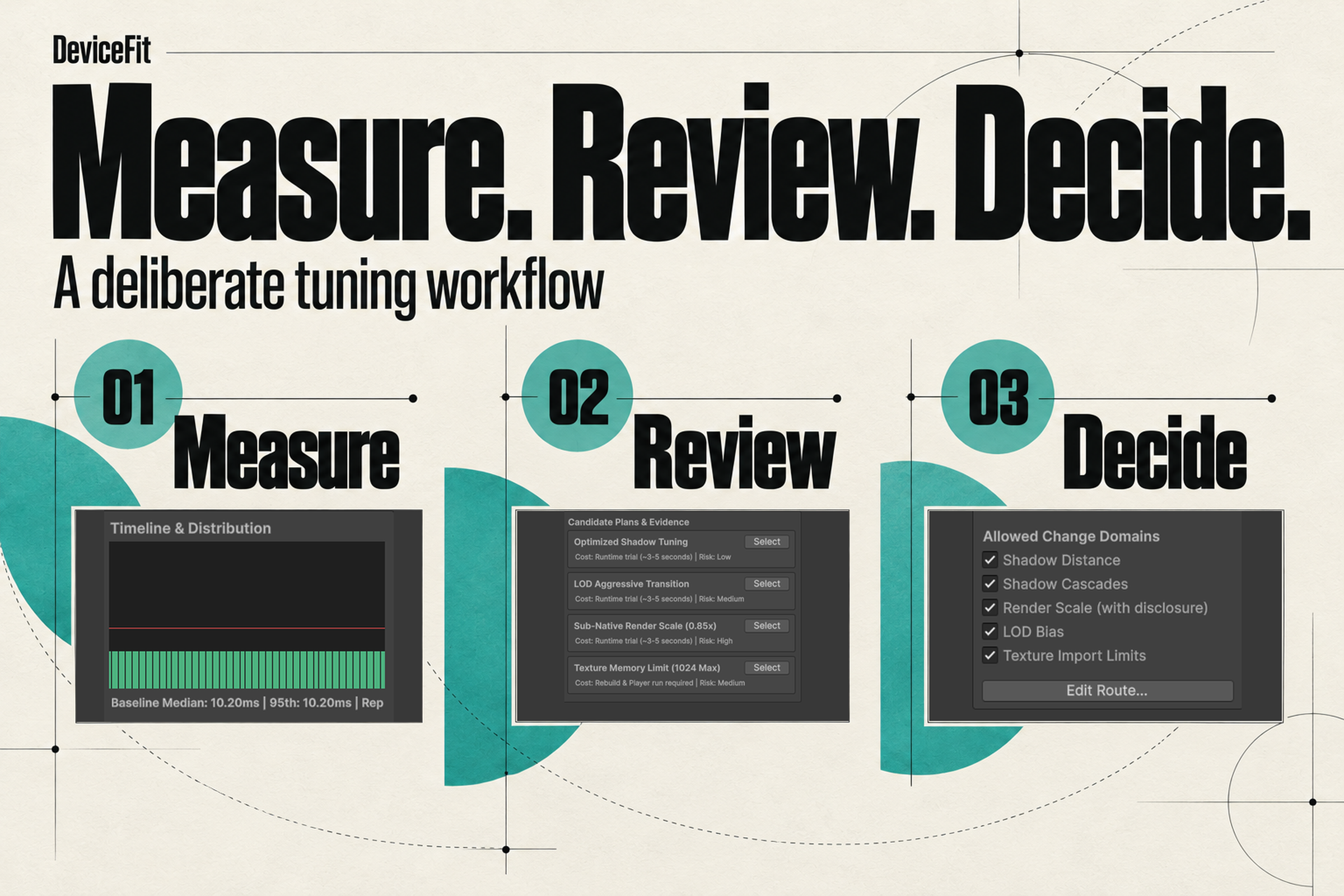
Many tools claim to “auto-optimize” a Unity project by scanning assets for uncompressed textures or high-poly meshes and making blanket suggestions. In practice, static recommendations fail because they ignore the runtime state: a 4K texture on a distant prop might cost negligible frame time, while a simple 2-cascade shadow setup on dynamic foliage could be choking the GPU.
Heuristic Scanners (Flawed):
Static Asset Scan ──> Generic List of "Heavy" Assets ──> Manual Trial & Error ──> Unknown Impact

DeviceFit Experiment Loop:
1. Declare Target ──> 2. Budget ──> 3. Baseline ──> 4. Bottleneck ──> 5. Plan ──> 6. Trial ──> 7. Visual Gate ──> 8. Apply/Restore ──> 9. CI Gate
The 11 Sequential Steps Explained
1. Declare Environment
Before a single frame is recorded, DeviceFit logs your runtime environment:
- Engine version (e.g. Unity 6000.5.4f1)
- Render Pipeline and package version (URP 17.5.0)
- Graphics API (Direct3D 11, Direct3D 12, Vulkan)
- Target architecture and available profiler counters Comparing numbers across different graphics APIs or between the Unity Editor and a standalone player produces invalid conclusions.
2. Set Budget
A target without a budget is meaningless. You declare explicit bounds:
- $p50$ (median) frame time limit (e.g. 16.67ms for 60 FPS)
- $p95$ and $p99$ tail latency bounds
- GC allocation per frame limit (e.g. 0 bytes on hot loop)
3. Record Multi-Repeat Baseline
A camera route is played over $\ge 3$ complete passes. The first 100 frames are discarded as warm-up. Frame timings are sorted and the median value is extracted.
4. Isolate the Bottleneck
Raw frame data is fed to BottleneckAnalyzerService. Using hardware timings from ProfilerRecorder and FrameTimingManager, the service identifies which subsystem limits the frame:
CPU_MAIN_THREAD: Logic, physics, or GC overhead.CPU_RENDER_THREAD: High draw calls, batch breaking, or command buffer submission.GPU_SHADOWS_AND_RASTER: Geometry density, shadow passes, overdraw.MEMORY_GC_PRESSURE: Frequent garbage collector invocations.
5. Plan Bounded Candidates
Rather than changing dozens of knobs randomly, CandidatePlannerService generates a small, bounded set of orthogonal candidates targeting the identified bottleneck.
6. Run Interleaved Trials
Candidates are executed sequentially along the exact same camera route. To counter thermal drift, baseline passes are interleaved between candidate trials.
7. Enforce Visual Quality Gate
Performance savings are meaningless if the game looks unacceptable. Visual checkpoints capture matched still frames, computing structural dissimilarity and highlighting regions of visual regression.
8. Select Non-Dominated Candidate
DeviceFit plots candidates on a Pareto efficiency curve. A candidate is chosen only if its performance improvement exceeds the measurement noise floor.
9. Apply Reversibly
The chosen candidate settings are applied to your active URP asset. A durable journal entry records pre-apply SHA256 hashes of the modified files.
10. Verify Clean Restoration
You can revert any applied change at any time. If an artist or designer subsequently modified the asset, DeviceFit flags a source conflict rather than blindly overwriting their work.
11. Protect in CI Gate
The trial configuration and budget are exported to a regression suite. Batchmode CI runs execute the route on every pull request, failing the build if frame times exceed the budget.
Summary
DeviceFit does not promise higher FPS. It provides the empirical tooling to measure, prove, and protect your game’s performance targets.