Getting Started with DeviceFit
Welcome to DeviceFit. Before jumping into tweaking settings, it is essential to understand how DeviceFit approaches optimization: as a scientific, reproducible experiment.
Traditional Approach:  Subjective "feels faster" or volatile single-frame FPS counter.
DeviceFit Approach:    Declared Target ──> Metric Budget ──> Multi-Repeat Route ──> Evidence Analysis ──> Journaled Rollback
The 8-Stage Measurement Loop
Every performance investigation follows an invariant sequential pipeline:
┌─────────────────┐     ┌─────────────────┐     ┌─────────────────┐
│ 1. Environment  │ ──> │ 2. Budget       │ ──> │ 3. Baseline      │
│ Target & API    │     │ P95 / GC Limit  │     │ >= 3 repeats    │
└─────────────────┘     └─────────────────┘     └─────────────────┘
         │                                               │
         ▼                                               ▼
┌─────────────────┐     ┌─────────────────┐     ┌─────────────────┐
│ 4. Bottleneck   │ <── │ 5. Candidate    │ <── │ 6. Visual Check │
│ CPU/GPU/GC/Wait │     │ Bounded Deltas  │     │ Side-by-side A/B│
└─────────────────┘     └─────────────────┘     └─────────────────┘
         │                                               │
         ▼                                               ▼
┌─────────────────┐                             ┌─────────────────┐
│ 7. Apply/Rollback│ ──────────────────────────> │ 8. CI Gate      │
│ SHA256 Journal  │                             │ Exit Code 0 / 1 │
└─────────────────┘                             └─────────────────┘
- Environment Declaration: Define your engine, URP package, graphics API, and target tier. Never benchmark in a vacuum.
- Budget Specification: Establish non-negotiable performance thresholds ($p50, p95, p99$ frame times, GC allocations).
- Baseline Capture: Run an automated camera route with warm-up stabilization across at least 3 repeat passes to calculate a robust median.
- Bottleneck Analysis: Classify whether CPU main thread, render thread, GPU raster/shading, or garbage collection limits performance.
- Candidate Planning: Formulate bounded setting deltas (shadow cascades, LOD bias, render scale, or texture limits) aimed specifically at the identified bottleneck.
- Visual Quality Gate: Review side-by-side renders and pixel difference heatmaps to ensure savings do not unacceptably degrade visual fidelity.
- Reversible Apply / Restore: Apply the winning candidate into your project assets. A persistent change journal records pre-apply SHA256 hashes so changes can be reverted cleanly at any time.
- CI Regression Gate: Run automated headless regression tests in your build pipeline to prevent future commits from silently degrading performance.
“Hello World”: Your First 5-Minute Run
To experience the complete loop without modifying your existing scenes, run the included sample lab:
Step 1: Open the Experiment Desk
Navigate to Tools > Decnet > DeviceFit > Experiment Desk.
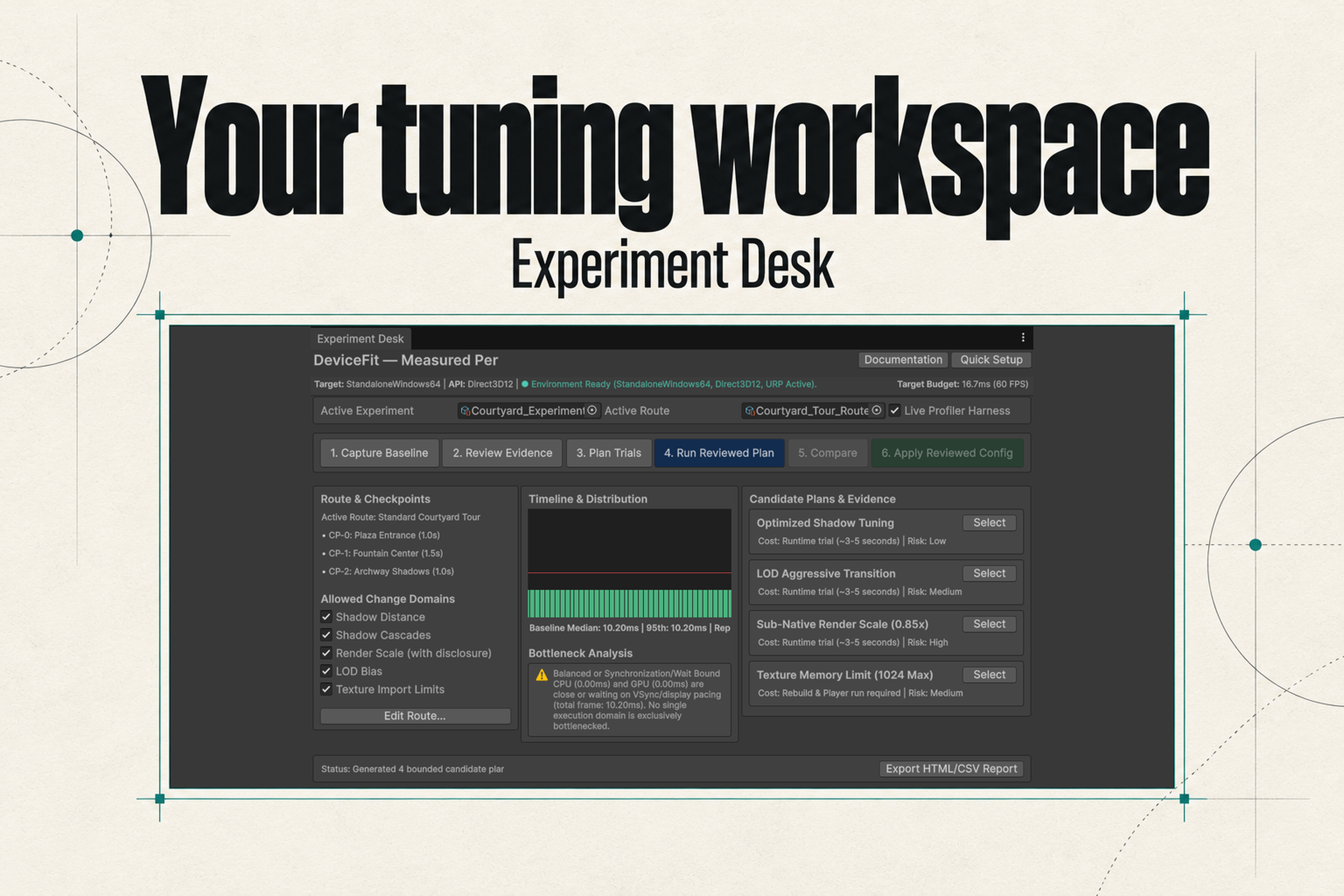
Step 2: Launch the Ready-Made Lab Scene
Click Run Sample Lab or open Assets/Decnet/DeviceFit/Samples/Lab_Courtyard_GPUShadows.unity. This scene contains high-density geometry and real-time shadow cascades designed to stress URP rendering.
Step 3: Run Baseline Recording
- Click 1. Capture Baseline.
- DeviceFit will run 3 sequential passes along the defined camera route.
- Review the summary metrics: $p50$, $p95$, and mean frame times are computed with warm-up frames discarded.
Step 4: Examine the Bottleneck Verdict
Click 2. Review Evidence. The analyzer examines frame timings and profiler counters:
Primary Bottleneck Identified: GPU_SHADING_AND_SHADOWS
Confidence: HIGH (98.2%)
Evidence: GPU frame time consistently exceeds CPU main thread by 6.4ms during shadow pass.
Step 5: Generate & Run Candidate Trials
- Click 3. Plan Trials. DeviceFit bounds candidates to the bottleneck domain:
- Candidate A: Reduce shadow distance from 150m to 80m.
- Candidate B: Reduce shadow cascades from 4 to 2.
- Candidate C: Lower render scale to 0.85 (with disclosure).
- Click 4. Run Reviewed Plan. Each candidate is evaluated against the baseline using interleaved runs.
Step 6: Visual Review & Apply
- Click 5. Compare Visuals. View side-by-side captures at designated route checkpoints.
- If visual degradation is acceptable, select the non-dominated candidate and click 6. Apply Reviewed Config.
- Open Tools > Decnet > DeviceFit > Applied Changes to see your journaled modification and verify you can restore the original values with a single click.
Next Step
Explore the full Quick Start Guide to configure custom camera routes in your own game scenes.