Quick Start Tutorial
This guide walks you through setting up DeviceFit in your own game scene, authoring a camera route, setting performance budgets, and executing bounded trials.
1. Scene Prerequisites
To ensure reproducible measurements, your test scene should meet three conditions:
- Deterministic Start State: Dynamic actors or physics objects should either be disabled during benchmarking or reset to identical coordinates before each pass.
- Main Camera: An active Camera tagged
MainCamera. - URP Asset: The scene must be rendered with an active Universal Render Pipeline Asset assigned in Project Settings.
2. Authoring a Benchmark Route
Measurements require an automated camera route so every candidate is tested against identical geometry and lighting:
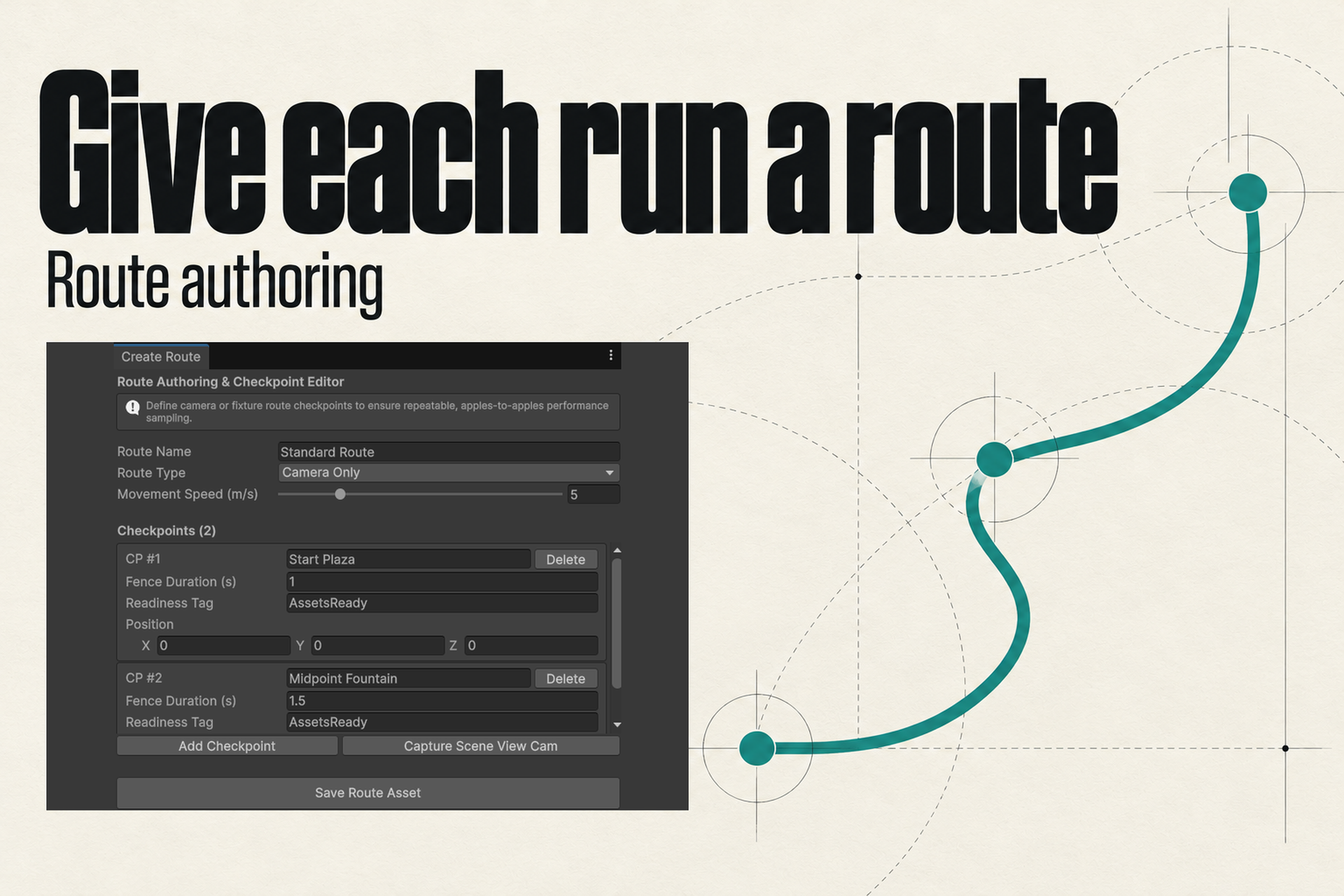
- Open Tools > Decnet > DeviceFit > Create Route.
- Click Create New Route Asset and save it as
Assets/Benchmarking/Combat_Route.asset. - In the Route Authoring Window:
- Add Checkpoint 0: Set Position
(0, 2, 0)and Duration3.0s. - Add Checkpoint 1: Set Position
(15, 3, 20)and Duration4.0s. - Add Checkpoint 2: Set Position
(30, 2, 45)and Duration3.0s.
- Add Checkpoint 0: Set Position
- Check Tag as Visual Checkpoint on Checkpoint 1. This instructs the runner to capture a reference still image for visual quality comparison.
- In your scene, add a GameObject named
[DeviceFit Runner], attach theRouteRunnercomponent, and assign your new route asset.
Scene Hierarchy:
├── Main Camera
├── Directional Light
├── Environment_Mesh
└── [DeviceFit Runner]  <── RouteRunner (Assigned: Combat_Route.asset)
3. Creating an Experiment Definition
An ExperimentDefinition ScriptableObject records your target hardware, budgets, and allowed tuning domains:
- In the Project window, right-click and choose Create > Decnet > DeviceFit > Experiment Definition.
- Name it
MidRange_Target_Experiment.asset. - Configure the budget fields:
- Target Frame Time:
16.67 ms(60 FPS baseline). - Spike Tolerance ($p99$):
22.0 ms. - Max GC Alloc / Frame:
0 bytes(or budget a nominal threshold).
- Target Frame Time:
- Define allowed tuning domains:
- Allow Shadow Tuning (
allowShadows = true) - Allow LOD Bias Tuning (
allowLOD = true) - Allow Render Scale Adjustments (
allowRenderScale = true) - Allow Texture Downscaling (
allowTextureLimits = false)
- Allow Shadow Tuning (
4. Running the Experiment from Experiment Desk
- Open Tools > Decnet > DeviceFit > Experiment Desk.
- Drag
MidRange_Target_Experiment.assetinto the Active Experiment slot. - Verify your scene and route are active.
- Click Run Full Automated Lab.
- DeviceFit performs:
- Warm-up stabilization (100 frames).
- 3 passes of baseline route playback.
- Bottleneck classification.
- Automated candidate permutation testing.
- Metric delta computation with noise-floor filtering.
Experiment Desk Console:
[DeviceFit] Warmup complete (100 frames discarded).
[DeviceFit] Baseline Pass 1: Mean 21.4ms | Pass 2: Mean 21.6ms | Pass 3: Mean 21.3ms.
[DeviceFit] Baseline Median: 21.4ms (p95: 24.1ms, GC: 0 B).
[DeviceFit] Bottleneck: GPU Shading & Shadows (Confidence: 94%).
[DeviceFit] Candidate 1 (Shadow Dist 100m -> 60m): Mean 18.2ms (-3.2ms, Material Win).
[DeviceFit] Candidate 2 (LOD Bias 1.0 -> 0.8): Mean 20.8ms (-0.6ms, Near Noise Floor).
5. Reviewing & Applying Results
- Switch to the Comparison tab in the Experiment Desk.
- Review the Pareto-optimal candidates (candidates that save frame time with minimal visual compromise).
- Select Candidate 1 and click Apply to Project Settings.
- The change is saved into your URP Asset, and an entry is written to
Library/DeviceFit/Journal.json. - You can now commit your tuned asset, or revert it anytime from Tools > Decnet > DeviceFit > Applied Changes.
Pro Tip: Multi-Repeat Baseline
Never accept a baseline measured from a single run. OS background tasks, CPU boost clocks, and thermal states create run-to-run noise. DeviceFit requires at least 3 passes to filter out transient spikes.