Installation & Setup
Unity Asset Store Procurement, Requirements & Post-Import Configuration
[!IMPORTANT] Commercial Asset Notice: PERCH is a proprietary commercial tool available exclusively on the Unity Asset Store. It is not an open-source tool and is not distributed for free on GitHub or public git repositories. Purchasing through the Unity Asset Store provides full access to editable C# source code, demo assets, and future updates.
System & Engine Requirements
PERCH is engineered and qualified against the following baseline:
| Component | Qualified Baseline | Requirement Level | Notes |
|---|---|---|---|
| Unity Engine | Unity 6000.5.4f1 LTS | Recommended | Fully tested in EditMode, PlayMode, and standalone player builds. |
| Operating System | Windows 10/11 x64 | Qualified Baseline | Standalone 64-bit runtime player verified. |
| Render Pipeline | URP 17.5.0 | Demo Scenes Only | Shipped demo materials use URP/Lit. The core runtime has zero pipeline dependencies. |
| UI System | Unity UI (UGUI) 2.5.0 | Demo HUD Only | Required for on-screen controls in 06_RealSkinnedBirds.unity. |
| Unit Testing | Unity Test Framework 1.7.0 | Optional | Required only to execute test suites in Tests/EditMode and Tests/PlayMode. |
| External Dependencies | None | Zero | No third-party plugins, paid navigation solvers, or external services required. |
[!NOTE] Pipeline Independence: While the sample scenes and materials are authored for URP, the core runtime C# codebase (
Decnet.Perch.Runtime) has zero dependency on URP. You can integrate PERCH into projects using the Built-in Render Pipeline or HDRP by assigning your project’s shaders to creature models and perches.
Step-by-Step Installation Procedure
1. Purchase & Add to My Assets
- Navigate to the Unity Asset Store and purchase PERCH — Creature Landing & Perching.
- Click Add to My Assets to link the license to your Unity Organization.
2. Import via Unity Package Manager
- Launch Unity 6 (6000.5.4f1 or compatible) and open your target project.
- In the top menu bar, select:
Window > Package Manager - In the Package Manager window, click the package filter dropdown in the top-left corner and select:
Packages: My Assets - In the search bar, type
PERCH. - Select PERCH — Creature Landing & Perching, click Download, and then click Import.
- In the Import Unity Package modal dialog, ensure all assets under
Assets/Decnet/Perch/are checked, then click Import.
Project Root
└── Assets/
    └── Decnet/
        └── Perch/
            ├── Runtime/       # Core runtime engine (Zero Editor references)
            ├── Editor/        # PERCH Studio, authoring tools, and diagnostics
            ├── Examples/      # 6 sample scenes, Garden Finch, Willow Wren
            ├── Documentation/ # Local offline markdown reference
            └── Tests/         # Automated EditMode & PlayMode test suites
Post-Import Configuration Checklist
Step 1: Render Pipeline Verification
If your project is already configured with URP, the shipped materials will render immediately. If assets appear magenta/pink:
- Open
Edit > Project Settings > Graphics. - Ensure a valid Universal Render Pipeline Asset is assigned to the Scriptable Render Pipeline Settings field.
- Open
Edit > Project Settings > Qualityand ensure the URP Asset is assigned across your active quality tiers.
Step 2: Layer & Physics Collision Matrix
PERCH relies on standard Unity physics raycasts and sphere sweeps to detect perches and obstacles:
- Ensure your perches and scene colliders are assigned to appropriate physical layers (e.g.,
Defaultor customEnvironment/Percheslayers). - Open
Edit > Project Settings > Physicsand verify that the layers assigned to creatures can collide with the layers assigned to perch surfaces. - PERCH’s swept clearance checks automatically exclude the creature’s own colliders, so you do not need to disable creature-perch collisions globally.
Step 3: Assembly Definition Verification
PERCH uses strict assembly definitions to eliminate compiler overhead and prevent editor code leakage into runtime builds:
Decnet.Perch.Runtime.asmdef: Compiles for all platforms. Contains zero references toUnityEditor.Decnet.Perch.Editor.asmdef: Editor-only assembly. ReferencesDecnet.Perch.Runtime.Decnet.Perch.Examples.asmdef: Optional examples assembly.
[!TIP] If you are building a headless dedicated server or stripped player, PERCH’s clean assembly boundaries guarantee that no Editor assembly errors will block your build pipeline.
Validating Your Installation
To confirm that the package imported cleanly and operates correctly:
- In the Project window, navigate to:
Assets/Decnet/Perch/Examples/Scenes/06_RealSkinnedBirds.unity - Double-click to open the scene.
- Press Play in the Unity Editor toolbar.
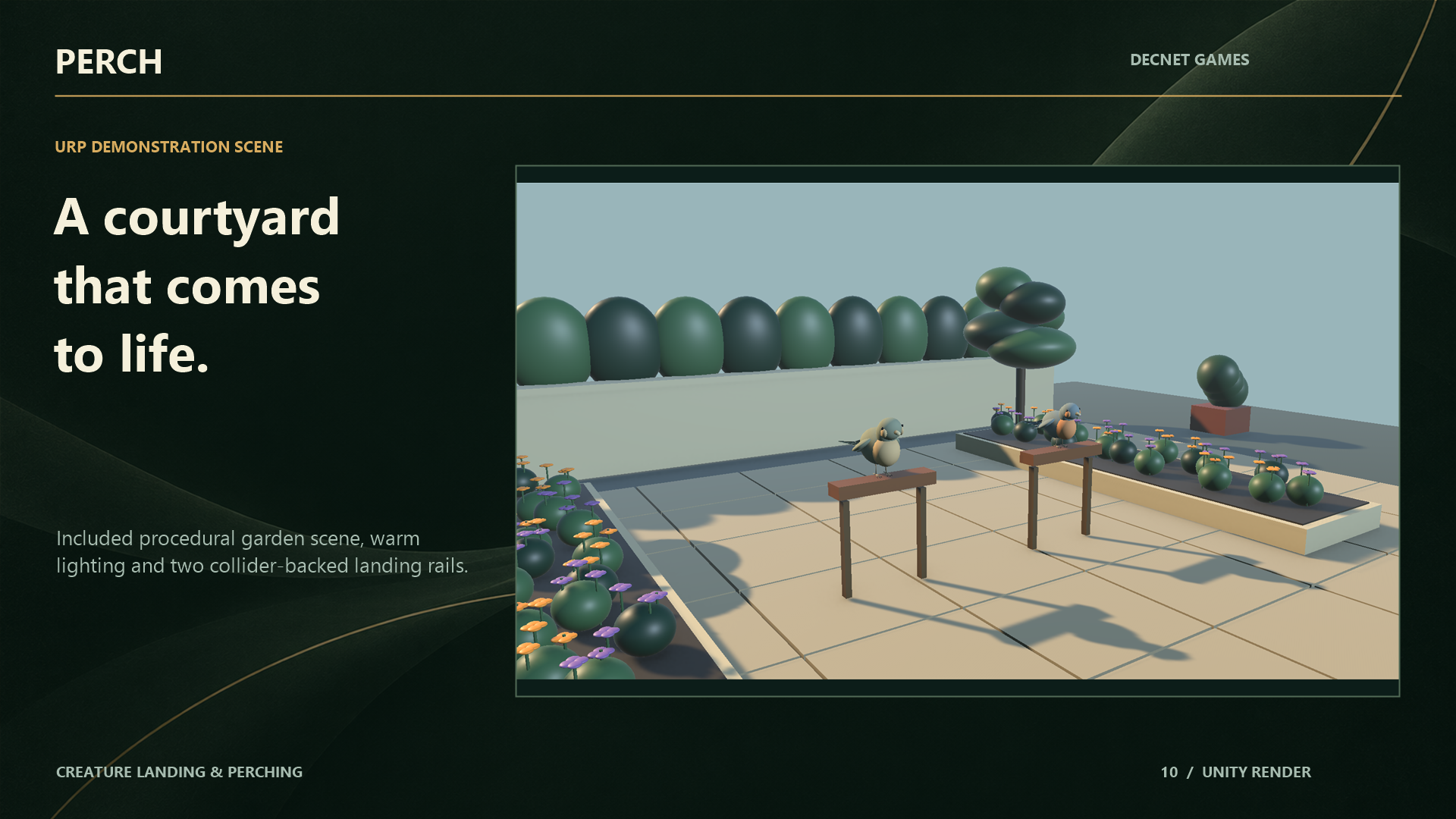
- You should immediately observe the Garden Finch and Willow Wren executing continuous landing and takeoff loops in the courtyard.
- In the top menu, open:
Window > PERCH > PERCH Studio(or pressCtrl+Alt+P). - Confirm that the Studio HUD displays live agent telemetry and green status indicators.
You are now ready to begin authoring! Proceed to the Quick Start Guide.