Importing Custom Creatures
Bringing Any Third-Party Bird, Bat, Dragon, or Drone into PERCH
One of PERCH’s strongest competitive advantages is that it is not hardcoded to specific demo models. You can bring any 3D flying creature model from the Unity Asset Store, TurboSquid, Sketchfab, or Blender into the PERCH pipeline in under 10 minutes.
| Procedural Rig Bindings | Custom Creature Profile (Garden Finch) |
|---|---|
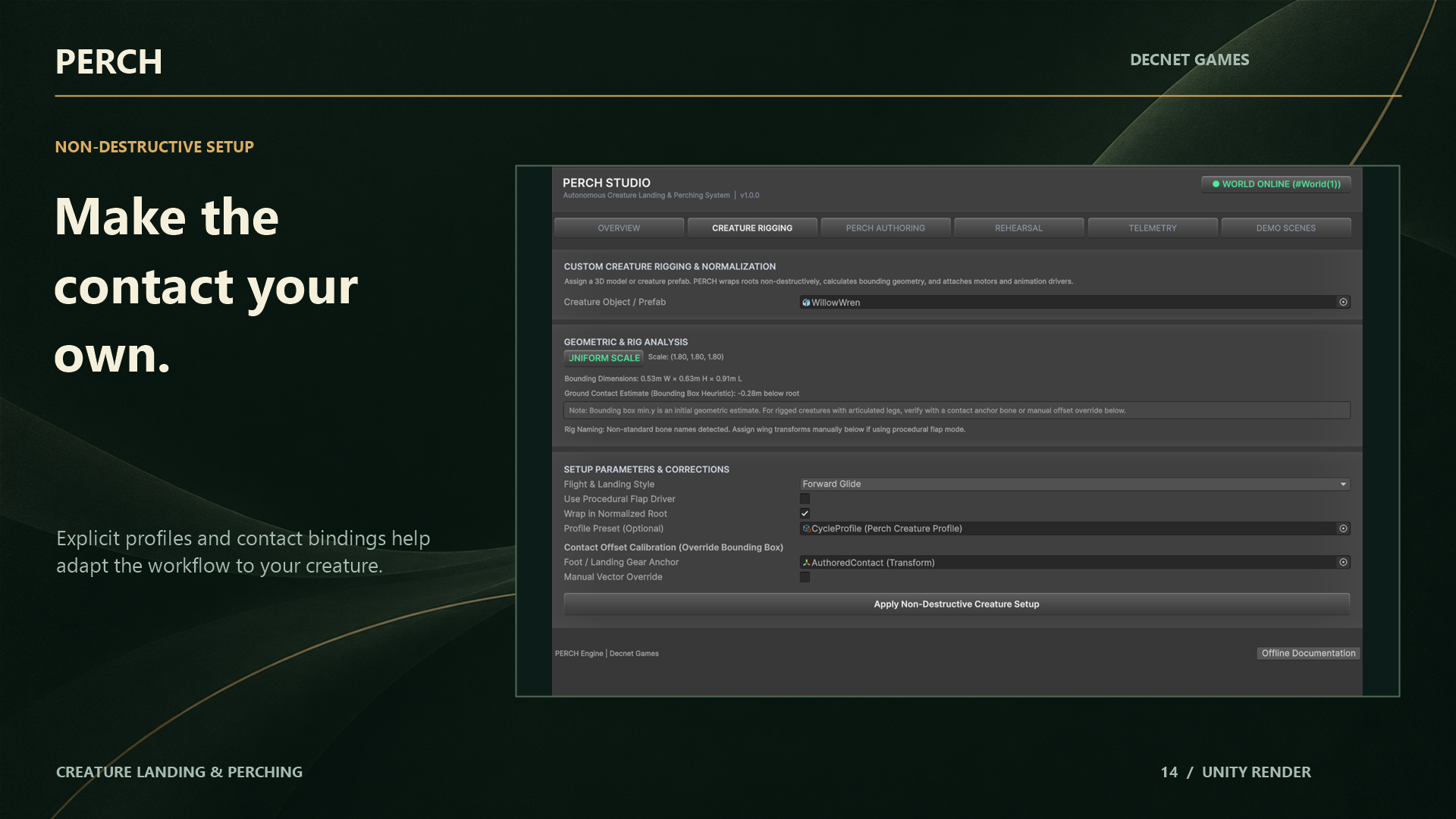 | 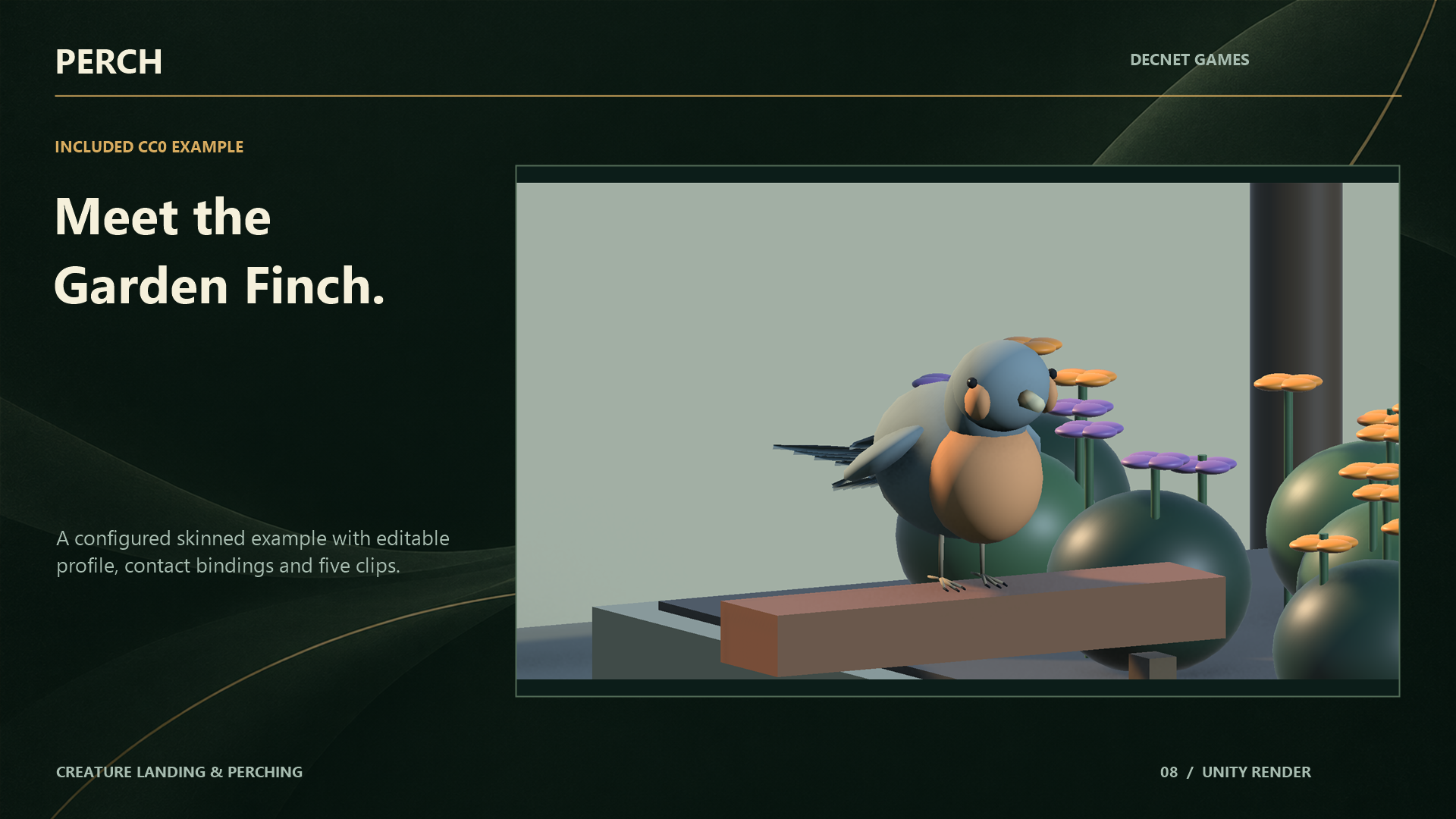 |
| Auto-detected wing bones and contact anchors | Calibrated physical body envelope and flight parameters |
The 6-Step Integration Pipeline
[1. Inspect FBX] ──> [2. Visual Wrapper] ──> [3. Add Components] ──> [4. Contact Anchor] ──> [5. Auto-Detect Bones] ──> [6. Select Driver]
Step 1: Inspect the 3D Model & Rig
- In your Project window, select your imported FBX model.
- In the Rig tab of the FBX importer:
- Animation Type: Select Generic (or Legacy). PERCH does not require or depend on Humanoid avatars.
- In the Scene View, check model orientation:
- Forward Facing: Model beak/nose must face along positive Z (Blue axis).
- Upward Facing: Creature back/head must align with positive Y (Green axis).
Step 2: The Visual Wrapper & Scale Normalization
[!IMPORTANT] The Golden Scale Rule: The GameObject with the
PerchAgentcomponent must always have uniform scale(1, 1, 1). Negative or non-uniform root scale will trigger anUnsupportedScaleerror.
If your imported FBX has an awkward scale (e.g., (0.01, 0.01, 0.01) or (100, 100, 100)):
- Create an empty GameObject named
MyCreature_Root(Scale:1, 1, 1). - Create a child GameObject named
VisualWrapper. - Drag your imported FBX mesh model inside
VisualWrapper. - Adjust scale on
VisualWrapperuntil the model matches real-world dimensions (e.g. wingspan $\approx 0.3\text{m} - 1.5\text{m}$).
MyCreature_Root (Scale: 1, 1, 1) <=== PERCH AGENT LIVES HERE
└── VisualWrapper (Adjust model scale here)
    └── Model_FBX (Mesh, Armature, Bones)
Step 3: Attach PERCH Components
On MyCreature_Root, add the following components:
PerchAgent: The brain and state machine.TransformMotor: Handles smooth world-space root displacement.PerchWaypointFlightProvider: Handles free-flight wandering.PerchRigBinding: Connects physical contacts and bones.
Step 4: Calibrate the Contact Anchor
The Contact Anchor defines where the creature’s feet touch the perching surface.
- Select the
PerchRigBindingcomponent. - Click Create Contact Anchor (or assign an empty child Transform).
- Position the anchor at the lowest point of the creature’s feet or claws:
- Do not place the anchor at the hip or pelvis bone origin!
- Align it precisely with the bottom of the foot mesh vertices.
- Set Root to Contact Offset by clicking Calculate Offset from Anchor.
Step 5: Auto-Detect Wing & Leg Bones
In PerchRigBinding:
- Click Auto-Detect Visuals & Bones.
- PERCH scans child bone names using built-in naming heuristics (
Wing_L,Wing_R,Leg_L,Foot_L). - If your rig uses custom bone names (e.g.,
Bone_WingJoint_01), manually drag the corresponding transforms into the Left Wing Root and Right Wing Root slots.
Step 6: Select Your Animation Driver
Depending on the animations available for your model:
- If you have authored landing clips: Add
PerchClipAnimationDriverand configure your Animator parameters (IsFlying,IsLanding,IsPerched,IsTakingOff). - If you only have a basic fly cycle: Add
PerchProceduralAnimationDriver. PERCH will procedurally flap wings during flight, flare during approach, and fold wings smoothly upon landing—zero clips required!