Quick Start Guide
From Zero to First Landing in Under 5 Minutes
This guide gets you up and running immediately. You can either test the fully configured interactive showcase scene or set up a perch and creature in your own scene in a few steps.
Option A: Explore the Interactive Demo Scene (60 Seconds)
The fastest way to experience PERCH’s full capability is to run the primary showcase scene:
- Open
Assets/Decnet/Perch/Examples/Scenes/06_RealSkinnedBirds.unity. - Press Play in the Unity toolbar.
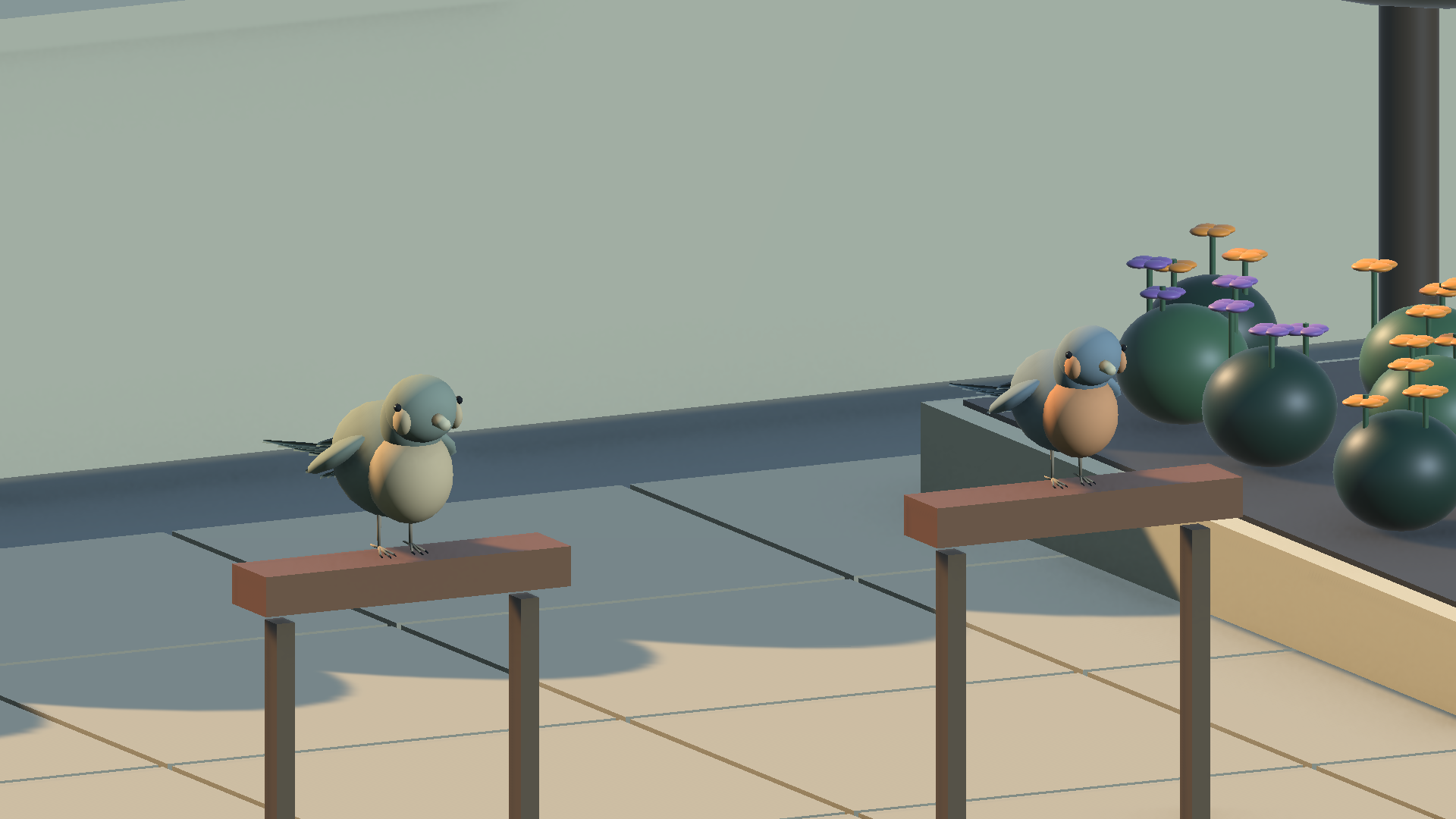
- Observe the Garden Finch and Willow Wren navigating the courtyard, executing Hermite approach trajectories, landing on wooden rails, and folding their wings.
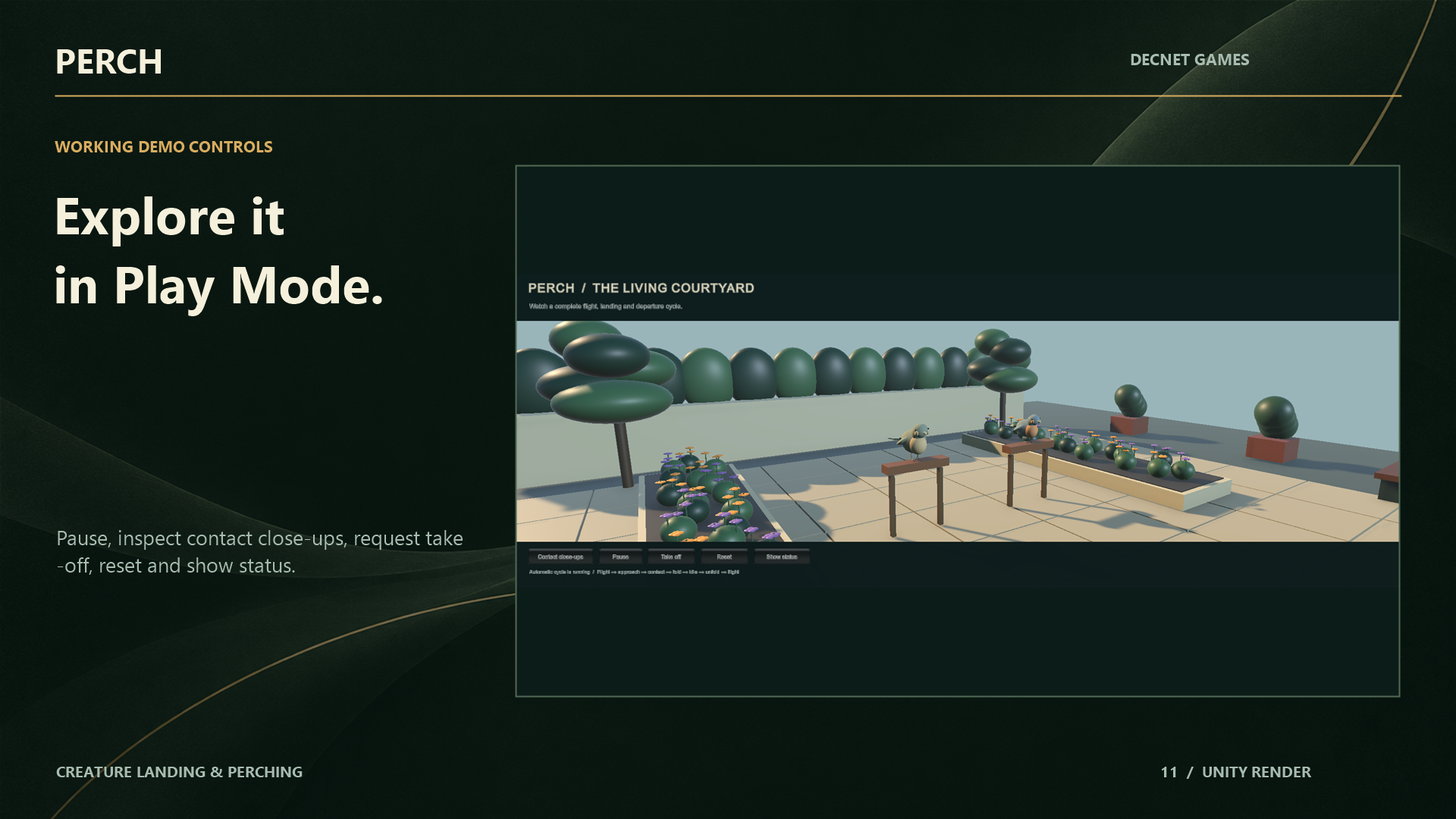
Demo UI Controls
The on-screen control panel allows you to inspect and command creatures in real time:
- Contact Close-Ups: Cycles camera focus between the Finch and Wren contact stances to inspect sub-millimeter foot placement and talon locking.
- Pause / Resume: Freezes simulation clock, pausing agent motion, timers, and leases synchronously.
- Take Off: Commands all perched birds to execute departure sweeps and launch into free flight.
- Reset: Returns birds to their initial airspace coordinates and resets slot registrations.
- Show Status: Toggles an on-screen HUD displaying active agent states, lease token sequences, and flight speeds.
Option B: Set Up Your Own Scene (5 Minutes)
Follow these steps to add reliable creature perching to any custom scene:
Step 1: Create the PerchWorld
- In the Hierarchy, right-click and select
Create Empty. - Name the GameObject
PerchWorld. - Add the
PerchWorldcomponent:- In the Inspector, click Add Component > search for
PerchWorld. - Leave default settings (Spatial Hash Cell Size:
2.0, Max Physics Queries:64).
- In the Inspector, click Add Component > search for
// PerchWorld manages spatial partitioning and atomic leases in the active scene.
Step 2: Create a Perch Support
- Create a support object (such as a 3D Cube stretched into a wooden fence rail: Scale
(0.1, 0.1, 2.0)). - Ensure the object has a standard Unity BoxCollider or CapsuleCollider.
- Name the GameObject
PerchRail.
Step 3: Add and Author a PerchSpot
- On
PerchRail, click Add Component > search forPerchSpot. - In the
PerchSpotinspector:- Drag your
PerchWorldGameObject into the World slot. - Under Slots, click Add Slot (or use Line Layout to generate multiple slots).
- Set the slot’s Local Position to the top surface of the rail (e.g.,
Y = 0.05). - Verify orientation:
- Local Y (Green Gizmo) represents the surface normal (pointing straight up).
- Local Z (Blue Gizmo) represents the bird’s forward landing direction.
- Assign the rail’s
BoxColliderto the slot’s Support Collider field. - Set Reserved Footprint Radius to
0.5meters.
- Drag your
Step 4: Drop in a Shipped Bird Prefab
- In the Project window, navigate to:
Assets/Decnet/Perch/Examples/Creatures/Prefabs/ - Drag
ConfiguredGardenFinch(orConfiguredWillowWren) into the Hierarchy. - Position the creature in clear airspace above the rail (e.g.,
Position = (0, 2.5, 0)). - In the creature’s
PerchAgentcomponent:- Drag your
PerchWorldGameObject into the World field. - Check Auto Landing Enabled (or trigger landing via script).
- Drag your
Step 5: Press Play
- Hit Play.
- The bird will cruise in its free-flight roaming volume.
- After its initial roaming cooldown, the decision engine evaluates the rail slot, acquires an exclusive lease, curves smoothly into the landing corridor, settles onto the collider surface, and holds its perched stance.
[!TIP] Hotkeys: Press
Ctrl+Alt+Pat any time to open the PERCH Studio window. From Studio, you can author slots with one click, scrub trajectories in Edit Mode, and inspect real-time agent telemetry.
What’s Happening Behind the Scenes?
When the bird touched down, PERCH executed an automated sequence:
- Checked external obstacles along the approach corridor via non-allocating sphere sweeps.
- Parameterized the braking curve with an Arc-Length LUT to prevent velocity jumps.
- Locked the creature root to the support collider’s local coordinate frame.
- Preserved physical exclusion space around the bird so no other creature can land within its wingspan.
Continue reading Slot & Spot Authoring to learn about line slots, patch perches, and custom surface alignments.