Guided Setup
Create the workspace without touching your tables
Tools → Decnet → LocalizeShip → Guided Setup
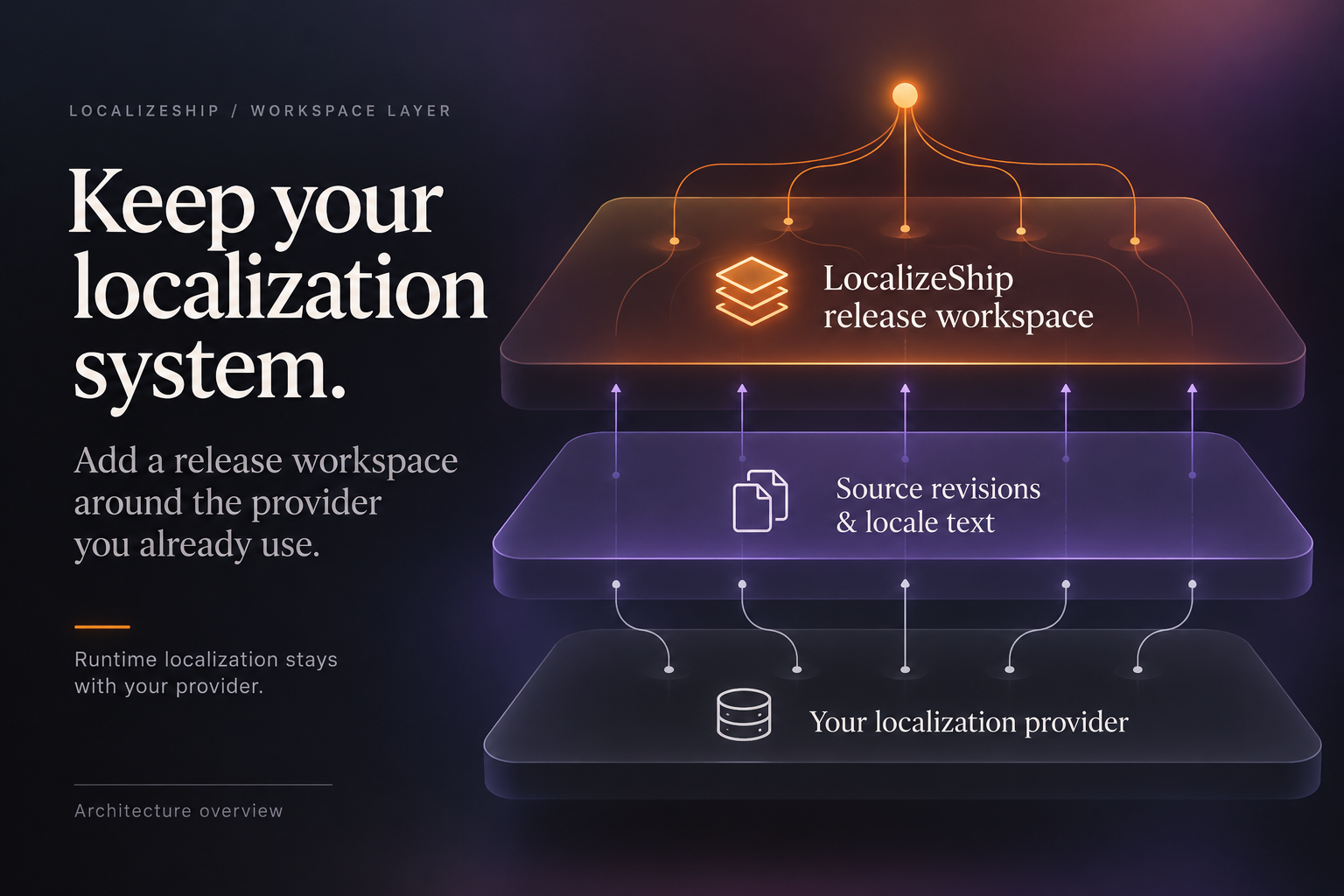
Guided Setup is a deliberately small wizard. It discovers which provider adapters are compiled in, collects your locale configuration, and creates a ReleaseWorkspace asset. It is not an importer, and it does not rewrite localization data.
The capture shows the optional I2 Localization and Dialogue System adapters absent; it is not licensed-install verification.
Step 1 — Provider discovery
The wizard calls ProviderDiscoveryService.DiscoverProviders() and renders one card per adapter:
| Adapter | Installed when | Version shown |
|---|---|---|
| Unity Localization (Official) | Always (IsInstalled => true) | 1.5.13 (fixed string) |
| I2 Localization (Optional Adapter) | LOCALIZESHIP_I2_SUPPORT is defined | Detected |
| Pixel Crushers Dialogue System (Optional Adapter) | LOCALIZESHIP_PIXELCRUSHERS_SUPPORT is defined | Detected |
For installed adapters, the card shows the collection count from GetAvailableCollectionNames(). For absent adapters, it says:
Optional package absent. Adapter compiles cleanly without unresolved symbols.
You can select one installed provider as the active provider. The selection is stored as a string in workspace.ActiveProviderType.
The Unity adapter’s
VersionStringis hardcoded. The card is a compilation check, not a live package query. Confirm the resolved version in the Package Manager.
Step 2 — Source and target locales
Fields:
- Source Locale Code — default
en. - Target Locales — comma-separated, default
de, ja, ar.
Values are trimmed and lowercased. Empty entries are ignored, and duplicates are removed in the order they first appear.
The step also shows the product rule:
Existing translations discovered on first import begin in “Needs Review” state. Old approvals never carry over to modified source lines.
That rule describes the review model; the wizard itself does not import translations.
Step 3 — Workspace asset and dry-run preview
Fields:
- Workspace Name — default
ReleaseWorkspace_v1.0. - Target Directory — default
Assets/Decnet/LocalizeShip/Generated. - Include Sample Test Fixtures — a checkbox whose value is not used by the current setup code.
The preview lists what will be created:
<Target Directory>/<Workspace Name>.asset
Provider: <selected provider>
Source Locale: [EN]
Target Locales: DE, JA, AR
Normalization Policy: v1 (Trim whitespace, normalize CRLF to LF)
Subtitle Reading Limit: 18.0 CPS
Clicking Create Workspace & Open Studio:
- Creates the directory if needed.
- Creates a
ReleaseWorkspaceinstance. - Sets
SourceLocale,TargetLocalesandActiveProviderType. - Saves it as an asset.
- Closes the wizard and opens the Release Board with the new workspace.
The new workspace has empty SourceRevisions, Approvals, VoiceEntries, SubtitleCues, Glossary and CaptureResults.
What Guided Setup does not do
- It does not read a String Table Collection.
- It does not populate source revisions.
- It does not create approvals.
- It does not bind collection GUIDs (
BoundCollectionGuidsstays empty). - It does not create sample fixtures, despite the checkbox.
- It does not validate that the locale codes exist in your provider.
To move data into the workspace, call the provider adapter and RevisionTracker, or use your own integration layer. The RPG sample demonstrates populated data if you want a working reference.
Recommended first-run sequence
- Create the workspace with Guided Setup.
- Open the Release Board and confirm the header shows the right source and target locales.
- Write a small integration step that reads one collection through
UnityLocalizationAdapter.ReadCollectionand passes each revision throughRevisionTracker.ProcessSourceEntry. - Confirm the matrix populates.
- Only then wire the rest of the pipeline.
Keep the generated workspace under version control from the first commit. The approval history is the release evidence, and it lives in that asset.
Regenerating or replacing a workspace
There is no “replace workspace” operation. To start over:
- Close LocalizeShip windows.
- Delete or rename the workspace asset.
- Run Guided Setup again.
You will lose approval history for that workspace. If you need to keep it, duplicate the asset first or copy it out of the project.