Getting Started
From string tables to an auditable release
LocalizeShip is not a runtime localization library. It is an editor-side release workspace that reads the localization data you already have, records review decisions against exact source revisions, and checks the assets that depend on those revisions. If you remember one sentence, remember this one:
A translation is only approved for the source revision it was reviewed against.
Everything else — the review states, the impact board, the merge planner, the gates — follows from that rule.
What you need before you start
- Unity 6000.5.4f1 (the verified baseline).
- The free Unity Localization package 1.5.13 (Addressables 1.25.0 comes with it).
- At least one String Table Collection with a source locale.
- LocalizeShip imported from the Unity Asset Store.
If any of that is missing, start with Installation.
The four objects you will work with
1. Release Workspace
A ReleaseWorkspace is a ScriptableObject that stores the release version, source locale, target locales, normalization policy, subtitle policy, and the records LocalizeShip has collected. It is the file you commit to version control.
Assets/Decnet/LocalizeShip/Generated/ReleaseWorkspace_v1.0.asset
2. Source revision
A source line plus its normalized text, speaker, context and a short SHA-256 hash. The hash is what approvals and voice takes bind to.
3. Approval record
One record per line × locale, holding the current review state, the approved source and translation hashes, the current translation text, and a history of approval events.
4. Capture fixture
A component you attach to a UI screen. It lists the text objects that belong to localization keys, plus the container and safe-area rectangles used for visual rules.
The six review states
| State | Meaning | Set by |
|---|---|---|
| Missing | No translation text exists for this locale. | Initial record creation / empty text |
| Draft | Rough or advisory text not ready for review. | Available in the model; advisory flow never auto-approves |
| Needs Review | Text exists but no human sign-off for this revision. | New text, direct edits, imports |
| Approved | Explicit human sign-off for the current source hash. | Approve action / batch approve |
| Stale | The source changed after approval; the approval no longer applies. | RevisionTracker / CheckSourceChange |
| Rejected | A reviewer rejected the text with a rationale. | Reject action |
The full state machine, including what does and does not invalidate automatically, is in Review States.
The interface map
Everything lives under Tools → Decnet → LocalizeShip.
| Menu item | Window | Use it for |
|---|---|---|
| Release Board | LocalizeShip Studio | Review matrix, impact, approvals, audit history |
| Guided Setup | Setup wizard | Create a workspace and choose source/target locales |
| Open Sample Release | Sample scene + board | Explore the end-to-end loop without touching your project |
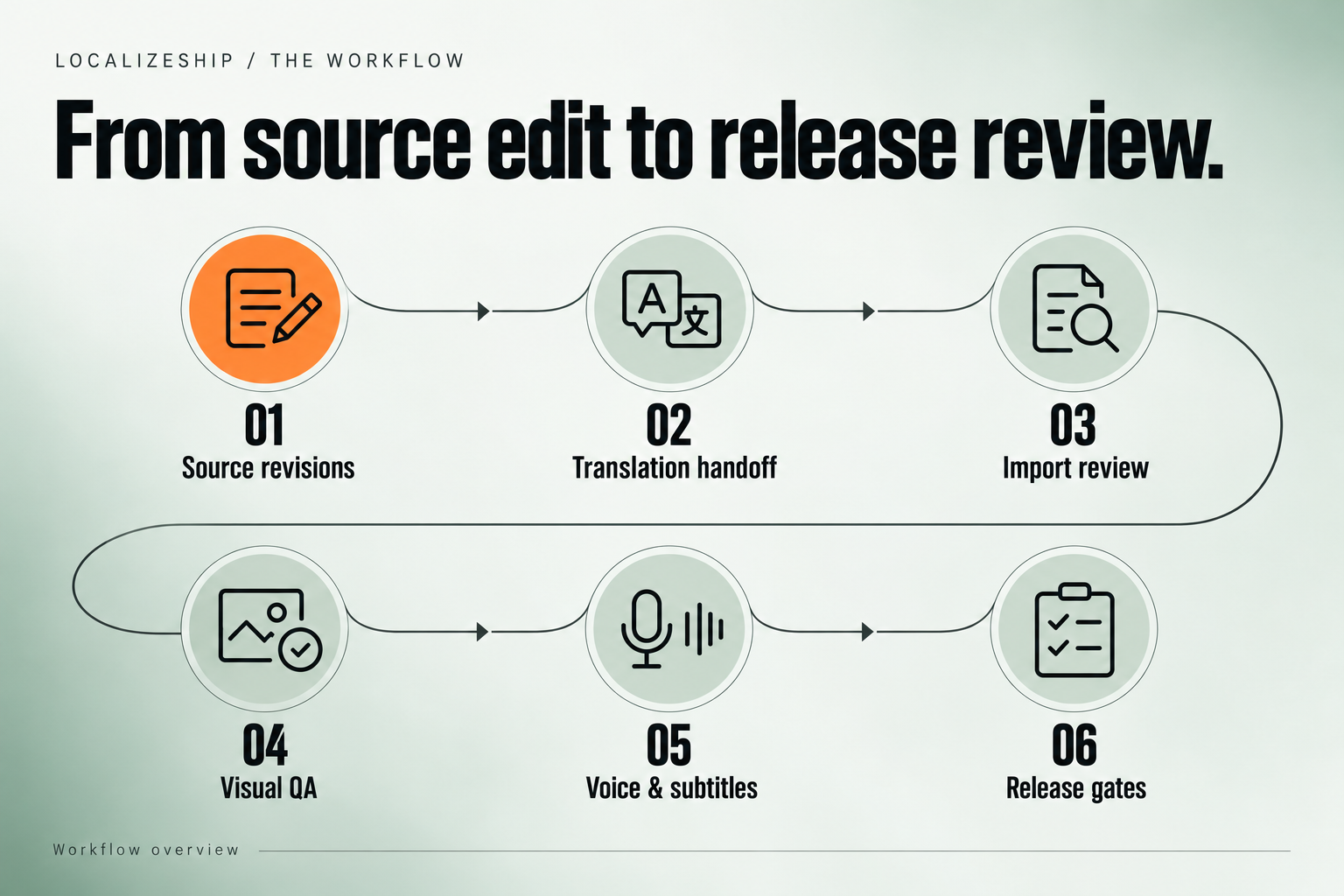
| Translation Handoff | Export wizard | Produce JSON + CSV packages for translators |
| Capture Matrix | Visual QA grid | Run fixture × locale layout evaluations |
| Voice & Subtitles | Coverage studio | Audition takes, inspect CPS and timing |
| Review Imports | Merge review | Three-way plan, conflict resolution, rollback |
| Documentation | Offline manual | Read the bundled markdown inside Unity |
The menu item names are exact. There is no separate “Release Gate” menu item in 1.0.0 — release gates are opened from the Release Board header. See Menu Reference.
Your first workspace in three steps
Step 1 — Run Guided Setup
Open Tools → Decnet → LocalizeShip → Guided Setup. The wizard has three steps:
- It discovers providers and shows whether each adapter is installed.
- You enter the source locale and comma-separated target locales.
- You name the workspace asset and create it.
What it actually creates: a ReleaseWorkspace asset at the target directory, with SourceLocale, TargetLocales and ActiveProviderType set. It does not import or mutate your string tables. Reading a collection is an explicit adapter call, not a side effect of setup.
Step 2 — Open the Release Board
The wizard opens the board for the new workspace. With no source revisions yet, the matrix is empty. That is expected: LocalizeShip has nothing to review until source lines have been processed through the revision tracker.
Step 3 — Explore the sample before wiring your own data
Open Tools → Decnet → LocalizeShip → Open Sample Release. This loads the pre-built RPG sample workspace and, if present, its scene. The sample contains English, German, Japanese and Arabic lines, voice takes, subtitle cues, a glossary term and a deliberately broken line so you can see the rules fire.
Continue with the Quick Start for the exact click path, or read the RPG Sample Studio chapter for what each sample asset demonstrates.
The release loop
  Author / change source text
            │
            ▼
  RevisionTracker hashes the line
            │
            ▼
  Approvals tied to the old hash become Stale
  Voice takes tied to the old hash become stale
            │
            ▼
  ImpactEngine explains what to re-check
            │
     ┌──────┴───────┐
     ▼              ▼
  Handoff        Visual / voice / subtitle review
  (JSON + CSV)         │
     │                 │
     ▼                 │
  Merge plan ──────────┘
     │
     ▼
  Release gates → HTML + JSON reports
You do not have to use every module on day one. A useful first adoption is:
- Release Board for approval truth.
- Handoff + Review Imports for the translator round-trip.
- Release Gates for the final evidence pack.
Add visual, voice, subtitle and glossary checks when the content pipeline is ready for them.
What LocalizeShip deliberately does not do
- It does not resolve strings at runtime.
- It does not replace your localization provider.
- It does not machine-approve translations.
- It does not claim player-build capture verification or linguistic/RTL certification.
- It does not ship a hidden cloud service or telemetry.
Read Limitations early. The honesty is part of the product.