Scenario Walkthrough
Fifteen minutes, one complete release loop
This walkthrough uses only shipped UI. Where a step requires code, it says so instead of pretending a button exists.
Before you start
- Unity 6000.5.4f1 with the package imported.
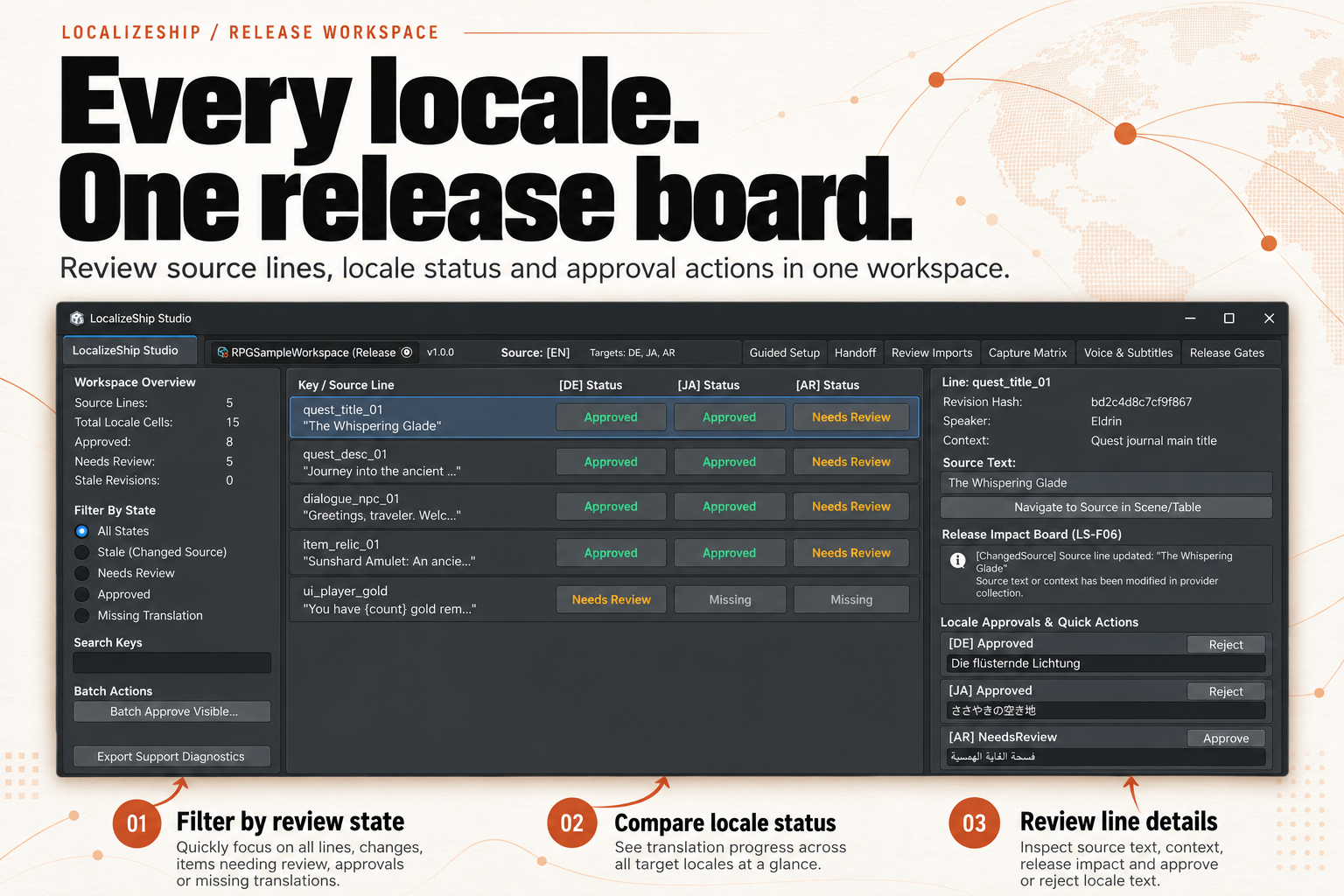
RPGSampleSceneopen.RPGSampleWorkspaceloaded in the Release Board.
Open with Tools → Decnet → LocalizeShip → Open Sample Release.
Step 1 — Read the matrix
In the Release Board:
- Confirm the locale headers are
DE,JA,AR. - Use the state filter to show Needs Review. Expect the Arabic cells and
ui_player_gold/DE. - Use the search field to filter
quest. Expect two rows. - Click
dialogue_npc_01and read the right-hand detail panel: source text, speakerEldrin, contextMain greeting dialogue.
What you are learning: the board is a review surface, not a table editor for source strings.
Step 2 — Approve one cell
- Select
dialogue_npc_01and theARcell. - Edit the translation text in the detail panel if you want.
- Click Approve.
Expected:
- state becomes
Approved; - an
ApprovalEventis appended with your reviewer label and a timestamp; - the summary counts update.
The source hash recorded is the current revision hash. If the source later changes, the approval becomes Stale.
Step 3 — See the text-rule defect
ui_player_gold is seeded with Du hast gold übrig. — missing {count}.
The board will not flag it. To see the defect, run the guardrail from an editor script:
var rev = workspace.GetSourceRevision(new StableEntryId("ui_player_gold"));
var app = workspace.GetApproval(rev.EntryId, new LocaleId("de"));
var violations = new TextRuleEngine()
    .ValidatePlaceholders(rev, app.TranslationText, new LocaleId("de"));

foreach (var v in violations)
    Debug.Log($"{v.Severity} {v.RuleName}: {v.Message}");
Expected: a MissingPlaceholder error for count.
Fix the text in the cell, approve it, and re-run to see zero errors. This is the correct division of responsibility in 1.0.0: the rule engine exists, the board does not call it.
Step 4 — Check voice coverage
Open Voice & Subtitles.
- Both entries should be
BoundCurrent(green). - Click Audition on the EN entry. You should hear a 440 Hz tone, not speech.
- Note the durations: 2.4 s and 2.8 s.
To demonstrate staleness without editing the scene:
var tracker = new RevisionTracker();
tracker.ProcessSourceEntry(
    workspace,
    new StableEntryId("dialogue_npc_01"),
    "Greetings, traveler. Welcome to our sanctuary. Beware of the coming dark.",
    "Eldrin",
    "Main greeting dialogue");
EditorUtility.SetDirty(workspace);
Reopen Voice & Subtitles. Both takes should be StaleSourceRevision. The source edit also marks the de/ja/ar approvals stale in the Release Board.
This is the core promise of the product: one edit, visible downstream impact.
You have now modified the sample workspace. Restore it from source control or reinstall the sample before repeating the walkthrough.
Step 5 — Review the subtitles
Open the Subtitles tab.
- EN: 0–2.4 s.
- DE: 0–2.8 s.
CPS is text.Length / duration. If a cue exceeds 18 CPS it turns red. Invalid timing is highlighted and will fail the gate.
There is no min/max duration enforcement in the gate, despite the policy fields. Do not claim otherwise in your review notes.
Step 6 — Run the visual matrix
- With
RPGSampleSceneopen, open Capture Matrix. - Click Run Matrix Captures.
- Inspect a tile.
Expected:
- tiles for
de,ja,arbecomePASSorDEFECT DETECTED; - findings list overflow, safe-area or missing-glyph issues;
- the saved PNG is a flat colour placeholder.
If Arabic or Japanese glyphs are missing from the TMP font, that is a genuine finding from font.HasCharacter, not a rendering artifact of the placeholder image.
Step 7 — Export a handoff
Open Translation Handoff.
- Choose
de. - Export JSON and CSV to a folder you control.
- Open the CSV and confirm the header and rows.
The export contains source text, current translation, base hashes and constraints. Formulas are escaped. It does not contain glossary columns or audio.
Step 8 — Round-trip an import
- Edit one translation in the CSV (change a word, keep the entry ID).
- Open Review Imports, select the CSV, and load it.
- The planner classifies the row. If the source hash matches the base, it is a safe incoming change.
- Apply the plan.
- Check the board: the cell should be updated and in review, not silently approved.
For a conflict demonstration, change the source first (Step 4), then import a CSV based on the old source. The planner should classify it as a conflict and block apply until you resolve it.
Step 9 — Generate the gate report
- Return to the Release Board and open Release Gates.
- Generate the report.
- Read the verdict and the four details lines.
Expected on a fresh sample with unvisited captures and Arabic review pending: not Passed. After approving everything, running the matrix and fixing ui_player_gold, it can pass.
Export both HTML and JSON. Open the HTML in a browser and confirm it is self-contained and readable.
Step 10 — Record what you learned
Write down, for your own project:
- which surface you will use for source ingestion (the sample does not include one);
- whether you will call text rules before approval;
- how you will handle voice duration mismatch, which the gate ignores;
- who owns Arabic review and font coverage;
- where reports will be archived.
Those five decisions matter more than the sample’s green cells.