Quick Start
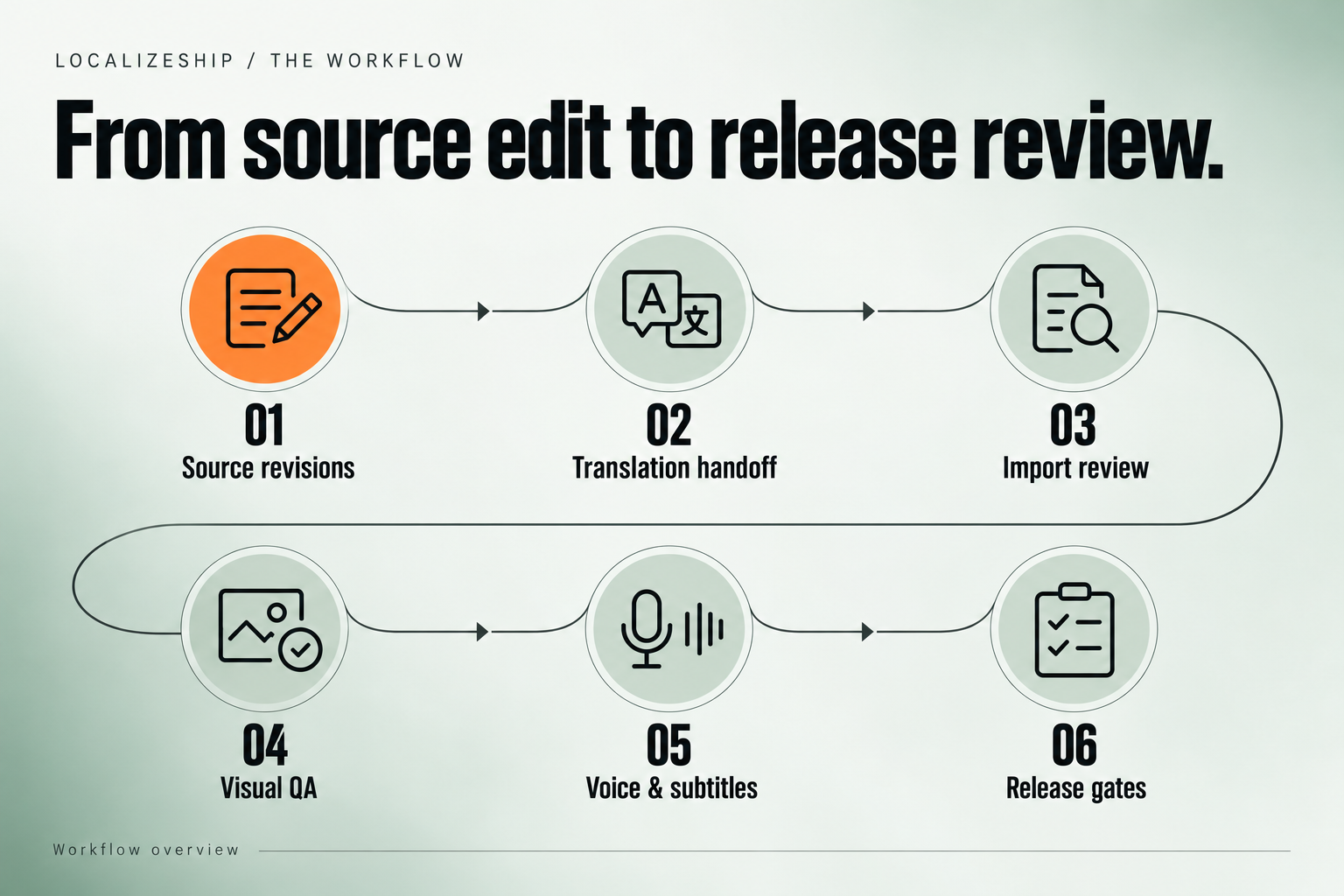
One sample, one full release loop
This walkthrough uses the bundled RPG sample so you can see every mechanism without touching production data. It takes about fifteen minutes if you read the panels as you go.
Before you begin
- LocalizeShip imported from the Unity Asset Store.
- Unity Localization 1.5.13 installed.
- A project you do not mind adding sample assets to (or a throwaway project).
The sample assets ship pre-generated:
Assets/Decnet/LocalizeShip/Samples/RPGSample/
├── RPGSampleScene.unity
├── RPGSampleWorkspace.asset
├── RPGSampleUI.cs
├── Audio/
│   ├── Voice_EN_Greeting.wav
│   ├── Voice_DE_Greeting.wav
│   └── Voice_EN_Greeting_Outdated.wav
└── Editor/RPGSampleSetup.cs
In 1.0.0 the sample is opened, not generated from a menu button.
RPGSampleSetup.GenerateSampleAssets()exists in the sample’s editor code but is not wired to a menu item. If the sample assets are missing, the Open Sample Release menu item will open the board without a workspace. Restore the sample folder from the package.
Step 1 — Open the sample
Choose Tools → Decnet → LocalizeShip → Open Sample Release.
The menu item:
- Finds
RPGSampleWorkspaceby asset type. - Opens
RPGSampleScene.unityif the file exists on disk. - Opens the Release Board with that workspace selected.
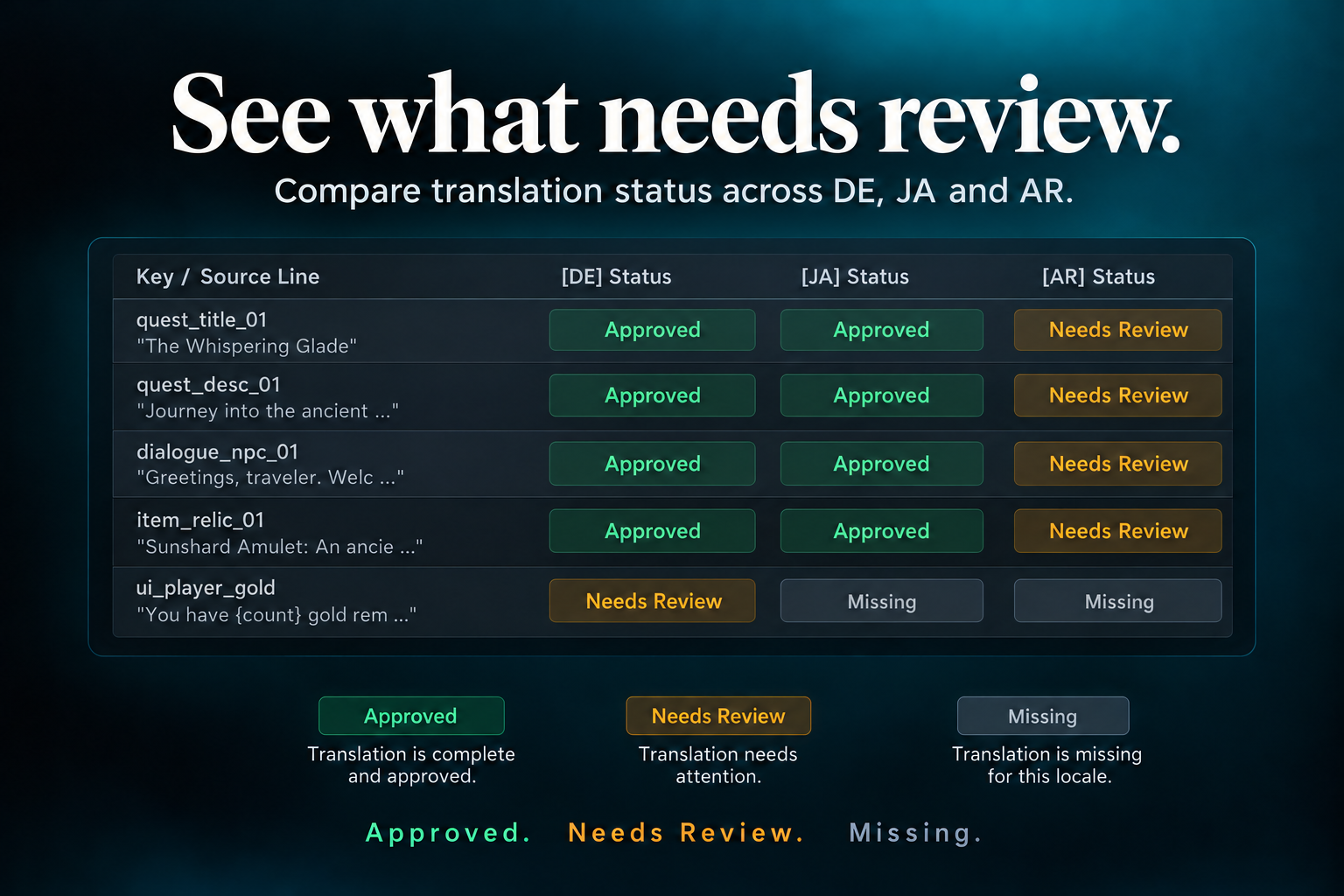
You should see four source lines across the top-level grid, with German, Japanese and Arabic columns.
Step 2 — Read the board like a release manager
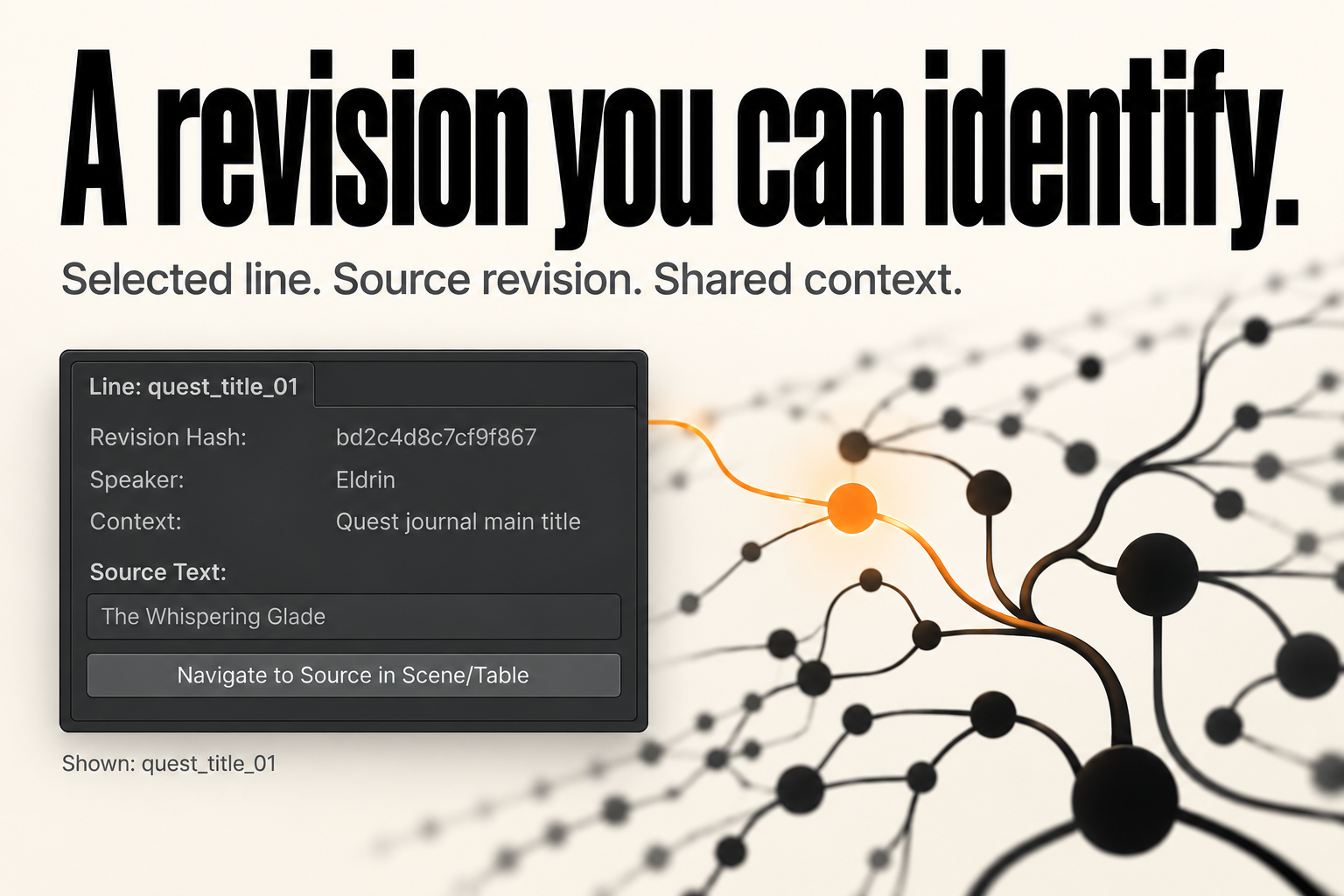
Select dialogue_npc_01.
In the right-hand inspector, note:
- Revision Hash — the short SHA-256 digest for this line’s normalized text plus speaker and context.
- Speaker —
Eldrin. - Context —
Main greeting dialogue. - Source Text — the English line.
- Release Impact Board — the artifacts currently affected by this line.
- Locale Approvals — German, Japanese and Arabic cards with their own state, text field and action button.
- Approval Audit Trail — the last four events per locale, newest first.
Now select ui_player_gold. Its German translation is:
Du hast gold übrig.
The source is You have {count} gold remaining. The {count} placeholder is missing. This line exists specifically to demonstrate text-rule failure. It is not a bug in the sample; it is a test case.
Step 3 — Make a source edit and watch approvals go stale
This is the core mechanic. You need a source line processed through the revision tracker. In the sample workspace, the seeded lines were written directly, but you can still demonstrate invalidation from code or from your own integration.
The rule is implemented in RevisionTracker.ProcessSourceEntry:
var newRev = new SourceRevision(entryId, rawText, speaker, context, policy)
{
    SceneOrFixture = fixture
};

if (currentRev.RevisionHash != newRev.RevisionHash)
{
    workspace.SourceRevisions.Remove(currentRev);
    workspace.SourceRevisions.Add(newRev);

    foreach (var approval in workspace.Approvals)
    {
        if (approval.EntryId == entryId)
        {
            approval.CheckSourceChange(newRev.RevisionHash);
        }
    }
}
ApprovalRecord.CheckSourceChange only invalidates a record whose current state is Approved and whose approved source hash differs from the new hash. It writes a system event:
Source revision changed from <old> to <new>. Approval invalidated.
If a record is Needs Review or Rejected, a source change does not move it to Stale in 1.0.0. It keeps its state until a human reviews it again. This is intentional but worth knowing when you read the gate report.
Step 4 — Export a handoff package
Open Tools → Decnet → LocalizeShip → Translation Handoff.
- Select the workspace if it is not already assigned.
- Choose target locale de.
- Leave Only Changed / Unapproved Lines enabled to skip approved German cells.
- Leave Include Speaker & Context Notes enabled.
- Leave Include Relative Screenshot Paths enabled to include the fixture/scene identifier associated with the source line.
- Set an output folder, for example
Assets/Decnet/LocalizeShip/HandoffExport. - Click Export Handoff Package.
Two files are written:
Handoff_1.0.0_DE.json
Handoff_1.0.0_DE.csv
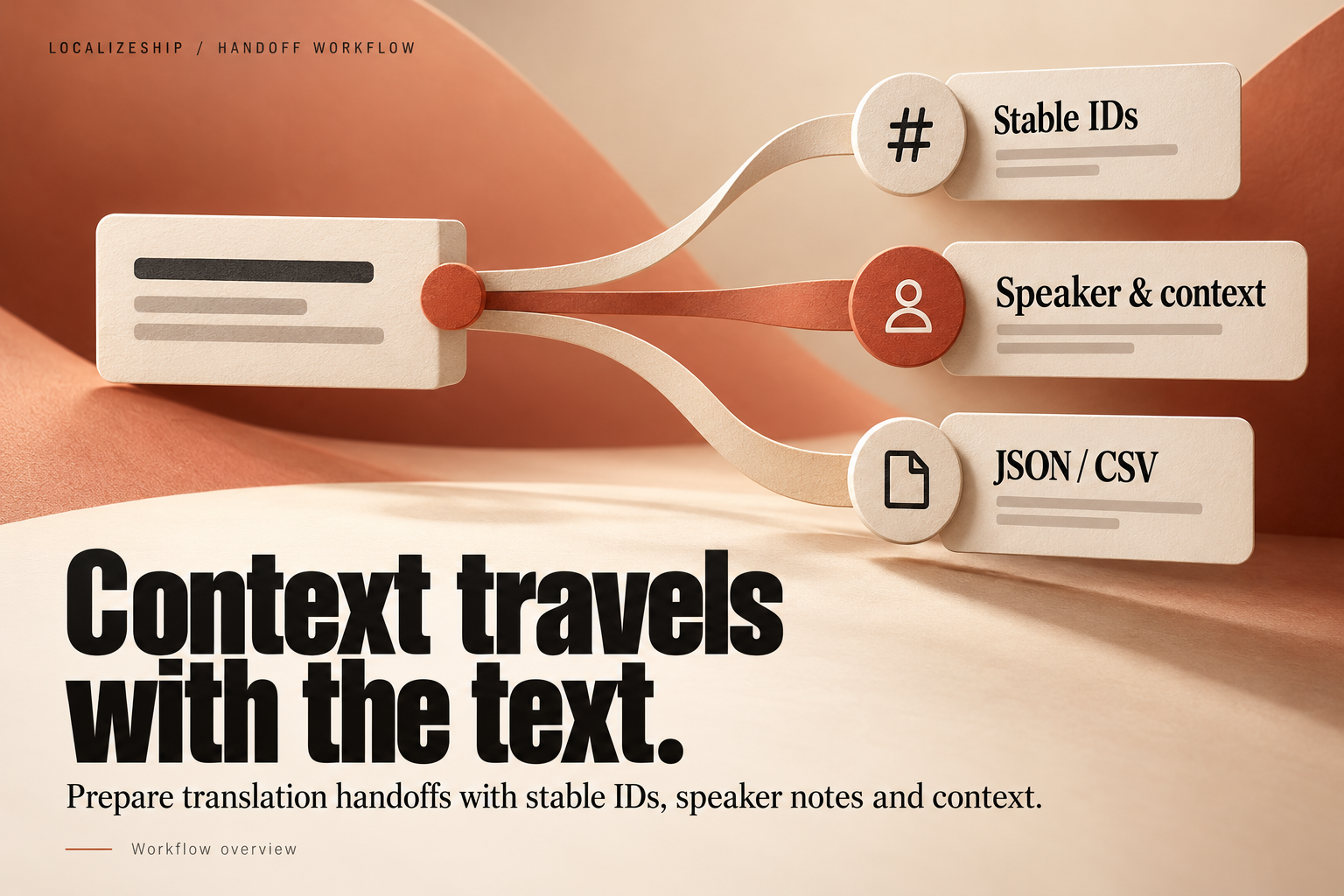
The JSON is a HandoffManifest with base source hashes, target locale, speaker, context, constraints and entries. The CSV has a fixed header:
EntryId,SourceText,Translation,Speaker,Context,BaseSourceHash
Text that begins with
=,+,-,@, a tab or a carriage return is prefixed with a single quote before export. That is spreadsheet formula-injection protection, and it applies to source text as well as translation text.
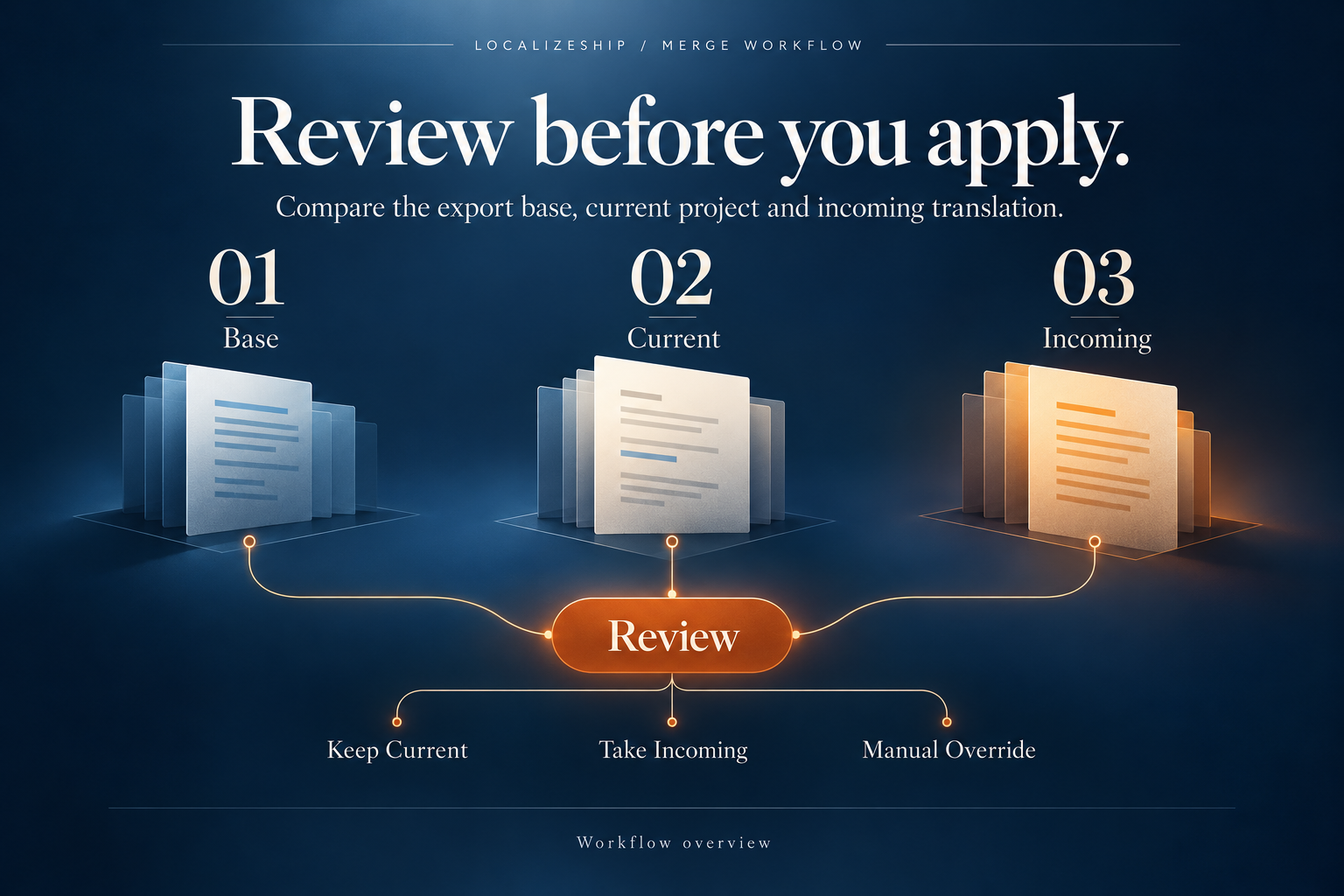
Step 5 — Simulate a translator return and review the merge
The sample ships without a translated return file. To exercise the merge window you can edit the exported CSV in a spreadsheet or text editor: change one German translation, leave the rest, and save as CSV.
Then open Tools → Decnet → LocalizeShip → Review Imports.
- Select the workspace and target locale.
- Browse to the edited file (
.csvor.json). - The window builds a
MergePlanand shows one row per incoming entry.
Each row shows the current project value, the incoming value, a classification, and — for conflicts — a resolution dropdown.
Common classifications you will see:
| Classification | Meaning |
|---|---|
SafeIncomingChange | Incoming text differs from current, no conflicting edit detected |
Unchanged | Incoming equals current |
StaleSourceConflict | Source changed after export; the translation was made against an older line |
ConcurrentLocaleEdit | Project text changed as well as incoming text |
BlankIncomingValue | Incoming cell is blank/whitespace and cannot overwrite |
DuplicateIdError | The same entry ID appears twice in the incoming file |
UnknownIdError | The entry ID does not exist in the workspace |
- Resolve every conflict (
Take Incoming,Keep Current, or manual override). - Click Apply Verified Merge Plan.
All applied rows enter Needs Review. The apply coordinator writes an ImportJournal with the previous text, state and approved source hash for every touched row.
Rollback note: rollback restores the previous translation text, previous review state and previous approved source hash. It does not restore the previous approved translation hash, because the journal does not store it. If your workflow depends on translation-hash restoration, verify it on a copy first.
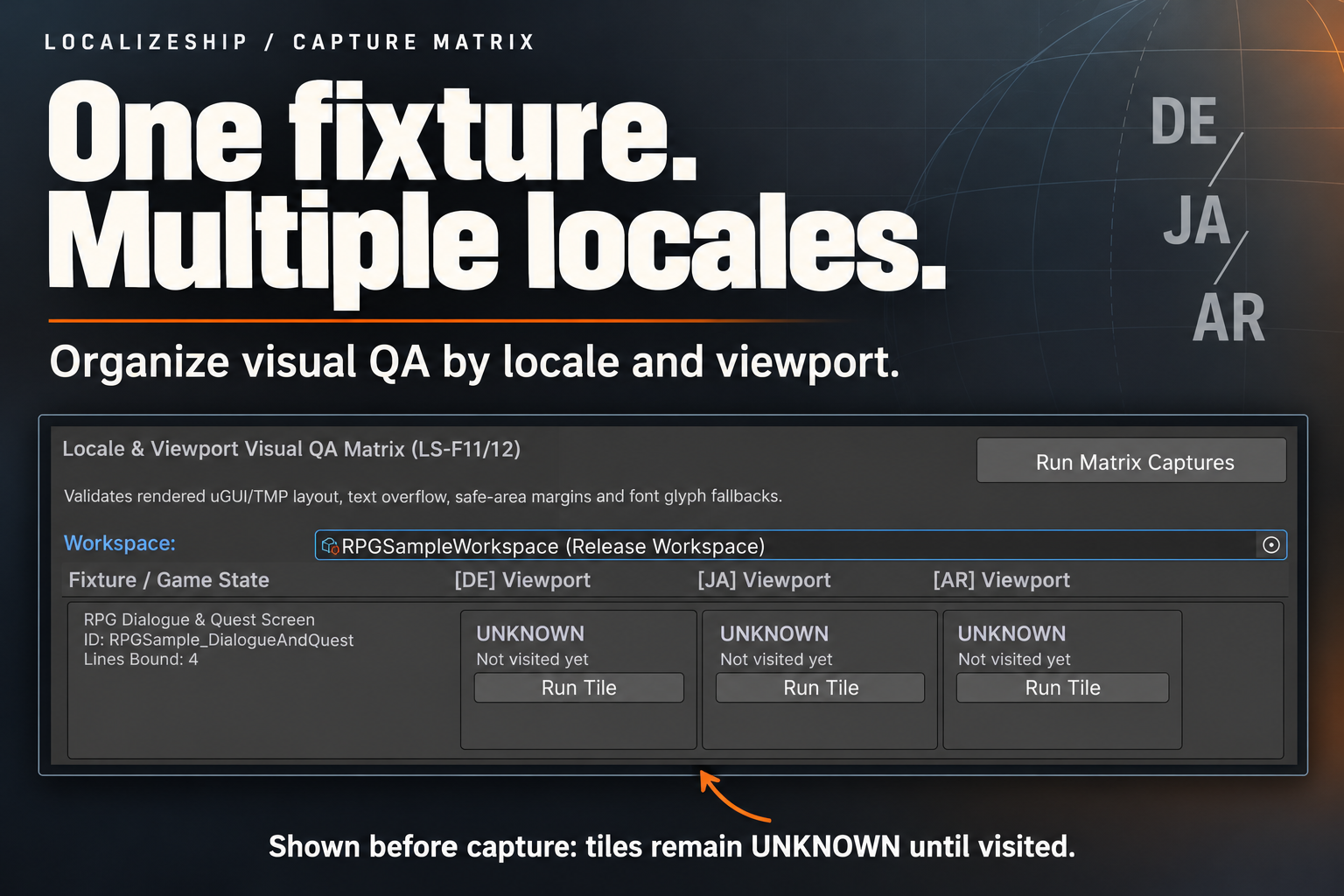
Step 6 — Run the Capture Matrix
Open Tools → Decnet → LocalizeShip → Capture Matrix.
- Select the sample workspace.
- The window finds all
CaptureFixturecomponents in the open scene. - Click Run Matrix Captures for every fixture × target locale, or Run Tile for one cell.
What happens per binding:
PrepareFixtureForLocalecallsSetLocale(string)on child MonoBehaviours that expose it. The sample’sRPGSampleUIdoes.- The canvas is force-updated.
- TextMeshPro preferred values are compared with the container rectangle.
- The font asset is asked whether it has each character.
- Visual rules produce findings with severity and fingerprint.
The tile reports Editor Approximation because IsPlayerCapture is false. The tool records the result, the findings and a screenshot path.
Capture honesty: in 1.0.0 the screenshot writer creates a PNG at the requested resolution and fills it with a solid background colour. It is a file artifact, not a rendered game frame. Visual findings come from layout measurement, not from image analysis. Player-build capture is not implemented and is not claimed. See Coverage Honesty.
Step 7 — Inspect voice and subtitles
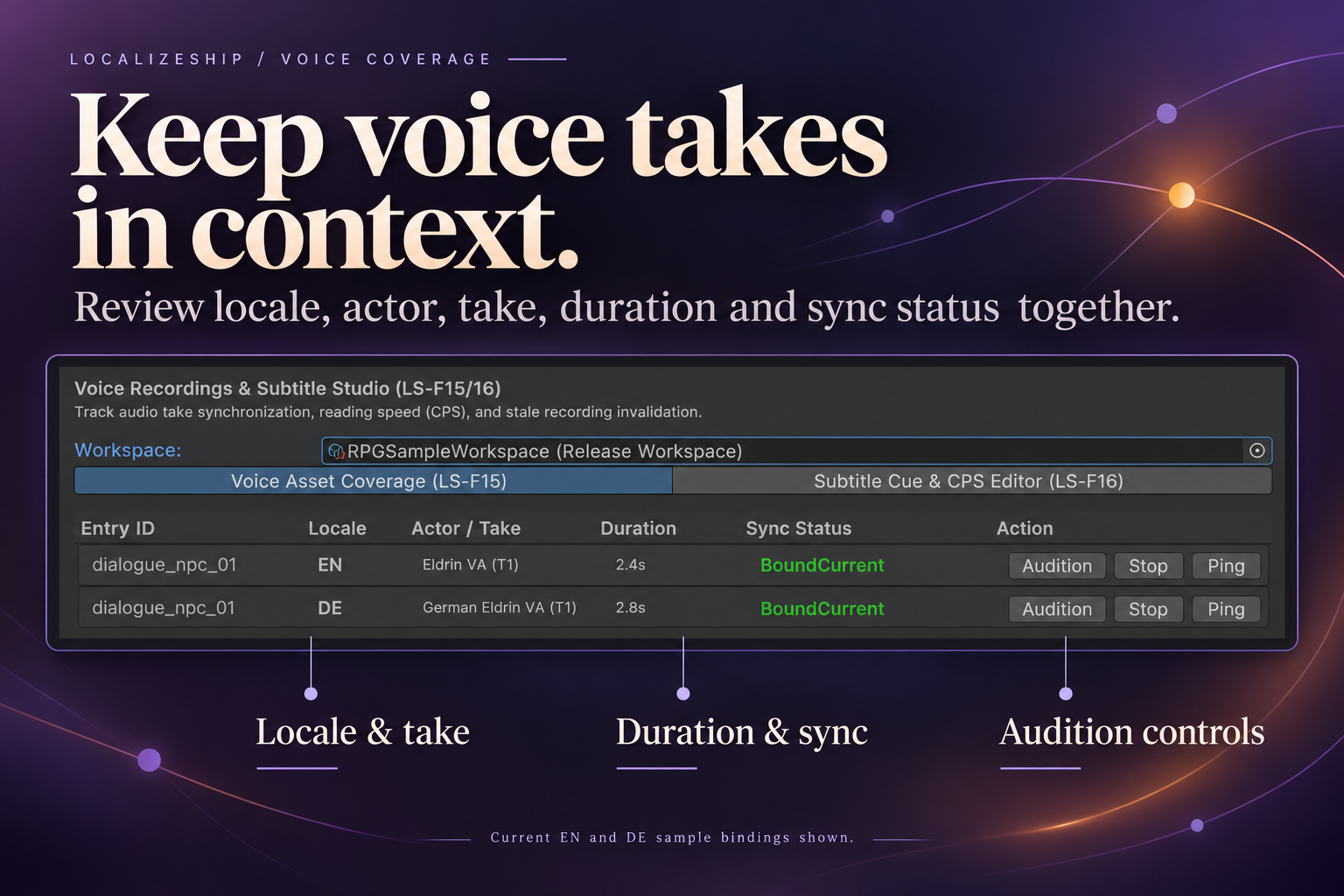
Open Tools → Decnet → LocalizeShip → Voice & Subtitles.
Voice tab
The sample has English and German takes bound to dialogue_npc_01. Each row shows locale, actor/take, duration and sync status. Audition plays the clip in the Editor through Unity’s internal preview API. Ping selects the clip in the Project window.
A take is stale when its bound source hash differs from the current source, or its bound translation hash differs from the approved translation hash. A duration difference greater than 2.0 seconds produces DurationMismatch.
Subtitle tab
Each cue shows its time range and characters per second. The default policy is:
MaxCharactersPerSecond = 18.0f;
MinCueDurationSeconds = 1.0f;
MaxCueDurationSeconds = 7.0f;
MaxCharactersPerLine = 42;
The gate currently enforces invalid timing and CPS. The minimum/maximum duration and line length values are policy data available to your own code; they are not gate checks in 1.0.0.
Step 8 — Evaluate release gates
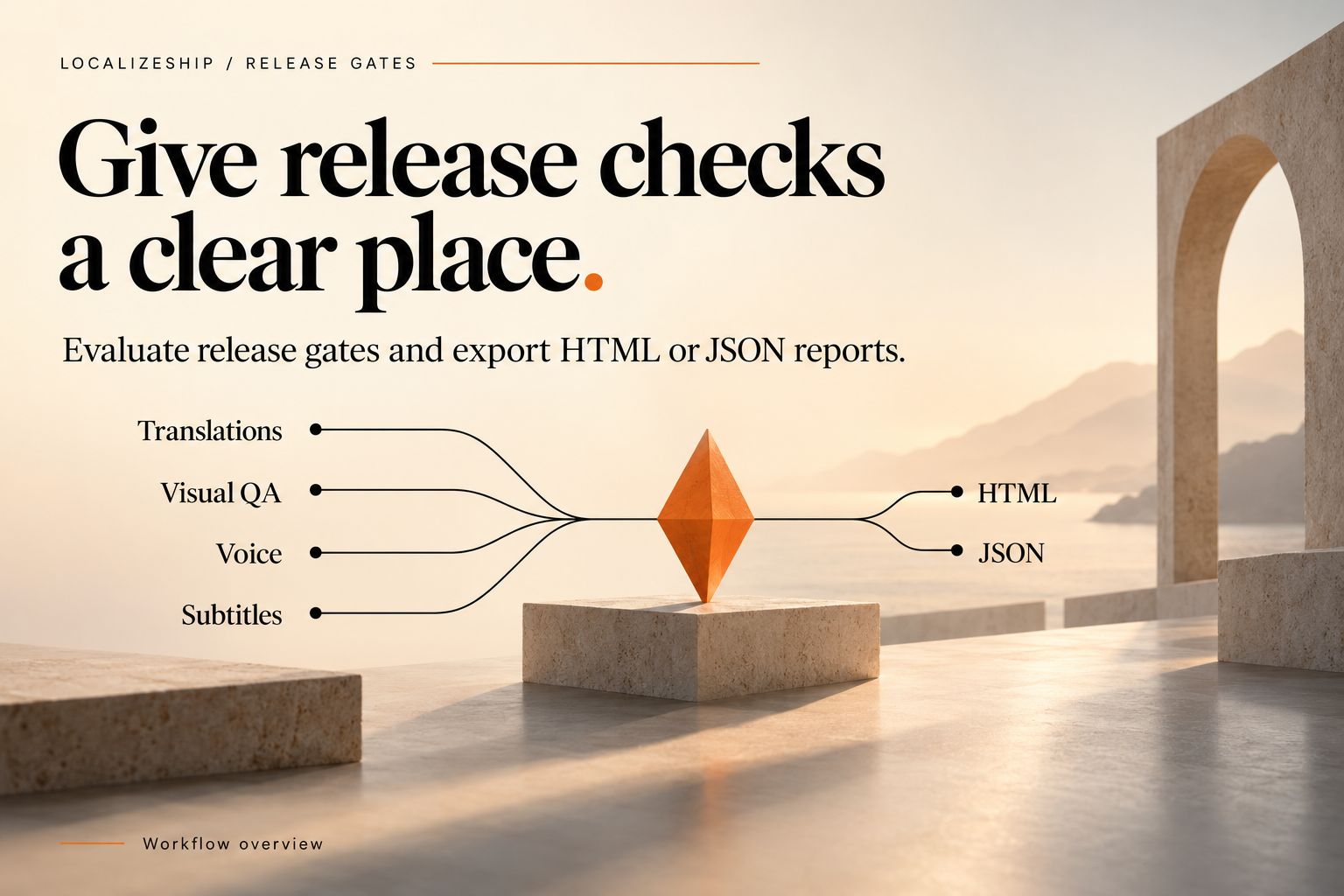
From the Release Board header, click Release Gates. (There is no separate menu item.)
- Confirm the workspace.
- Click Evaluate Gates.
- Read the four checks:
| Check | What it inspects |
|---|---|
| Translations Approval Matrix | Every source revision × target locale: missing, stale, unapproved |
| Visual QA Matrix & Geometry | Unvisited/registered capture tiles and unsuppressed error/fatal findings |
| Voice Coverage & Revisions | Voice takes whose source or translation binding is stale |
| Subtitle Timing & Reading Speed | Invalid start/end times and CPS above the workspace limit |
- Export HTML Report or JSON Summary.
The files are written next to the project folder:
LocalizeShip_Report_v1.0.0.html
LocalizeShip_Report_v1.0.0.json
The sample intentionally contains an unvisited capture and an unreviewed/missing translation. A Passed verdict is not the expected outcome until you visit every tile and review every cell. That is the point: the gate is not a smoke test that always turns green.
What you have now seen
- A revision hash that is more than a row ID.
- An approval that can expire without anyone editing the translation.
- A handoff with base hashes and formula protection.
- A merge plan that refuses to apply unresolved conflicts.
- A visual rule engine that measures real rects and glyph coverage.
- A release report that can fail for missing coverage, not only for bugs.
Next, apply the same loop to your own project with First Release.