Release Board
The screen you keep open during release week
Tools → Decnet → LocalizeShip → Release Board
The Release Board is the main workspace. It answers three questions without leaving the window: what is the state of every line and locale, what does this line touch, and what happened here.
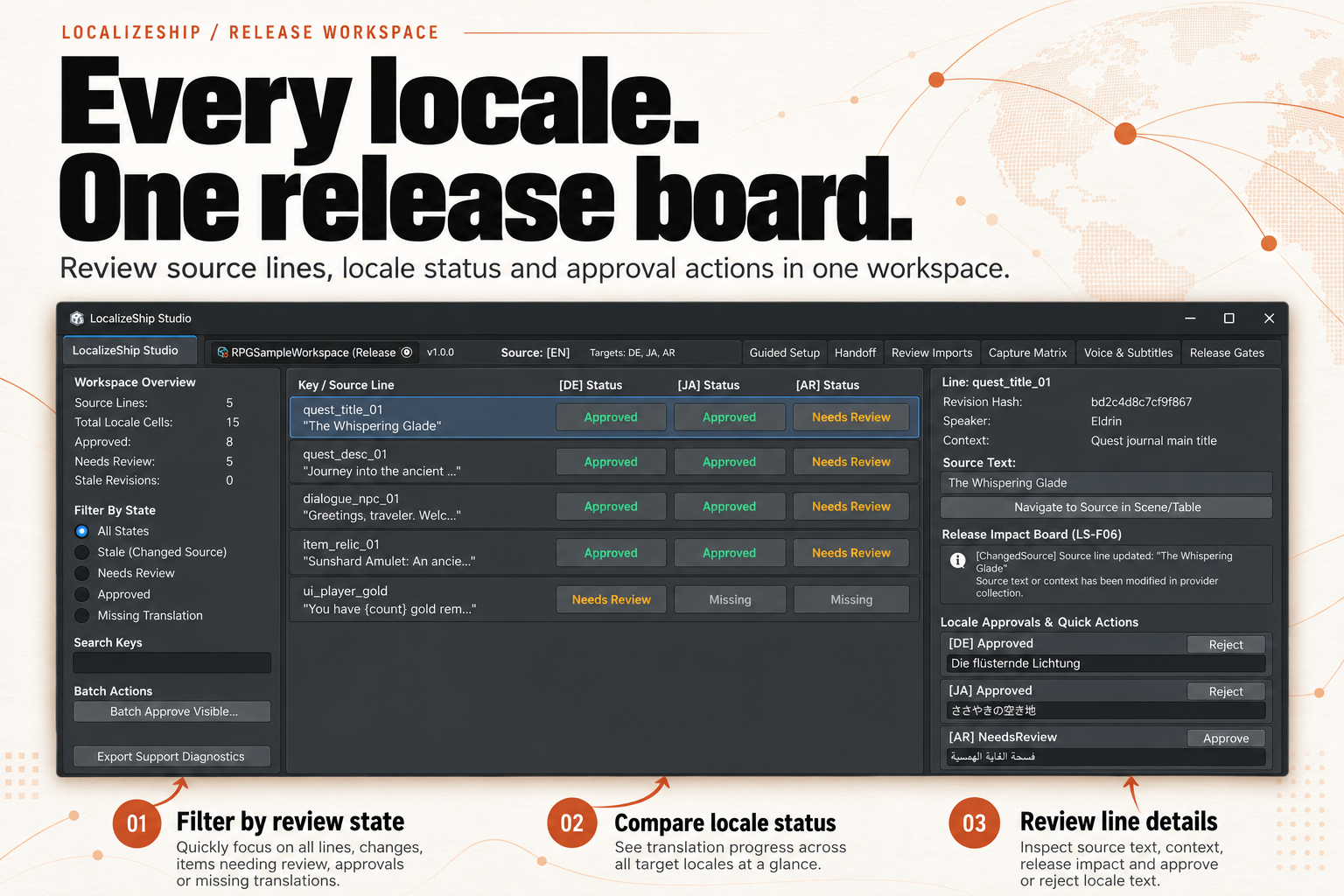
Layout
┌──────────────────────────────────────────────────────────────────────────────┐
│ Workspace asset │ version │ source locale │ targets │ module buttons        │
├───────────────┬──────────────────────────────────────────┬───────────────────┤
│ Overview      │ Key / Source        [DE] [JA] [AR]       │ Line details      │
│ counts        │ quest_title_01      ...                  │ Revision hash     │
│               │ dialogue_npc_01     ...                  │ Speaker / context │
│ Filters       │ item_relic_01       ...                  │ Source text       │
│ All / Stale   │ ui_player_gold      ...                  │ Impact board      │
│ NeedsReview   │                                          │ Locale approvals  │
│ Approved      │                                          │ Audit trail       │
│ Missing       │                                          │                   │
│ Search        │                                          │                   │
│ Batch approve │                                          │                   │
│ Diagnostics   │                                          │                   │
├───────────────┴──────────────────────────────────────────┴───────────────────┤
│ Ready. All edits journaled locally.                        [Audit History]   │
└──────────────────────────────────────────────────────────────────────────────┘
Header
- Workspace object field (drag any
ReleaseWorkspaceasset). - Release version, source locale and target locales.
- Buttons: Guided Setup, Handoff, Review Imports, Capture Matrix, Voice & Subtitles, Release Gates.
Release Gates has no separate menu item. It is opened from this header button.
If no workspace is assigned, the board tries to load the first ReleaseWorkspace asset it finds. If there is none, it shows a welcome view with Run Guided Setup and Open Ready-Made RPG Sample Release.
Left sidebar
Workspace overview
| Value | Source |
|---|---|
| Source Lines | SourceRevisions.Count |
| Total Locale Cells | source lines × target locales |
| Approved | approval records with state Approved |
| Needs Review | approval records with state NeedsReview |
| Stale Revisions | approval records with state Stale |
Only existing approval records are counted. A line that has never been reviewed in a locale has no record until you create one, so it is not included in these three counters.
Filters
Radio-style toggles:
- All States
- Stale (Changed Source)
- Needs Review
- Approved
- Missing Translation
A line is shown if any target locale matches the selected state. Missing is evaluated as “no approval record or state Missing”.
Search
Free-text search over the entry ID and the raw source text, case-insensitive substring. It is not regex.
Batch actions
Batch Approve Visible… considers lines that pass the current search filter (it does not apply the state filter) and approves every non-approved cell with non-empty translation text. It shows a confirmation with the count, then writes one ApprovalEvent per cell with the rationale Batch approval of filtered lines.
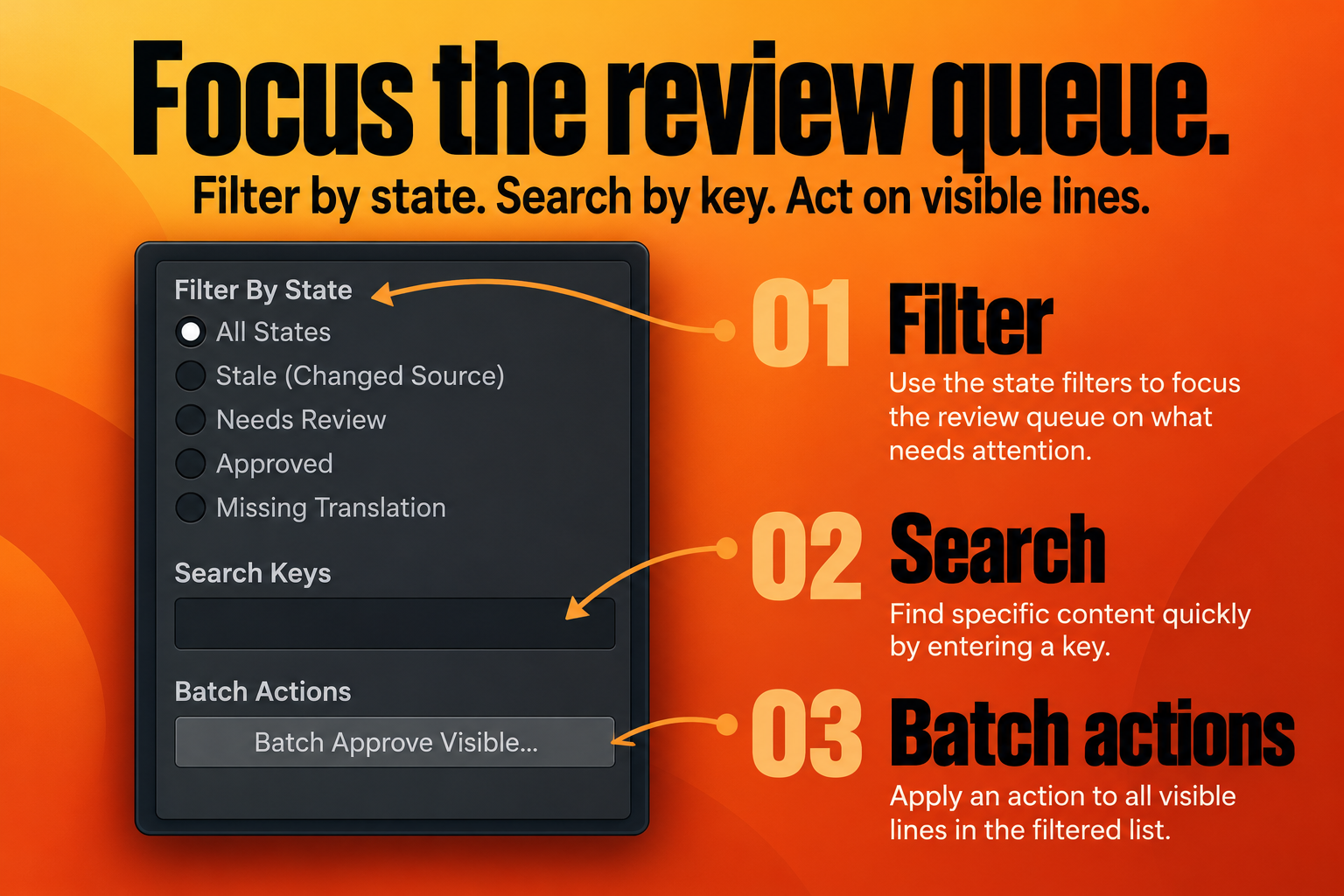
Batch approval is a blunt instrument. It does not inspect placeholders, glossary terms, voice takes, subtitles or visual findings. Use the search filter to narrow the set, and read the inspector before confirming.
Diagnostics
Export Support Diagnostics writes a timestamped text file next to the project folder. It contains Unity version, OS, graphics API, workspace counts and the three provider statuses. It does not attach logs or the workspace itself. See Support & Diagnostics.
Center matrix
Header: Key / Source Line followed by one column per target locale.
Each row:
- entry ID and truncated source text (25 characters +
...); - one status button per locale, coloured with the state colour.
Clicking the row or any badge selects the line and refreshes the inspector. Clicking a badge does not change the state.
Selected rows are rendered with a selection style only when the entry is the current selection. The relationship between the search filter and the state filter is “search first, then state”; both must pass for a row to appear.
Right inspector
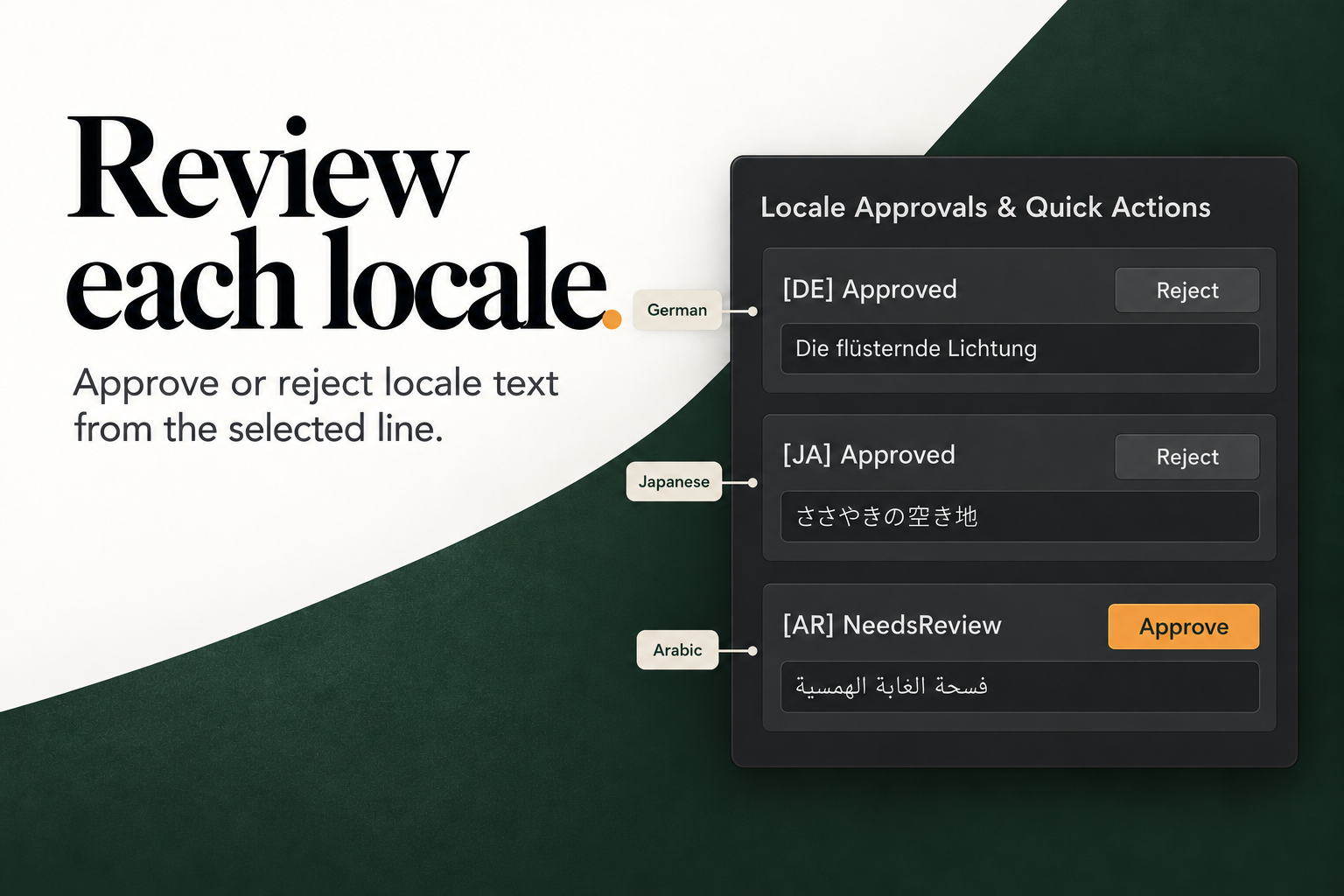
Line details
- Entry ID
- Revision hash
- Speaker (or
(None)) - Context (or
(None)) - Source text in a read-only help box
Navigate to Source in Scene/Table tries, in order:
- A
CaptureFixturein the open scene whose bound line matches the entry, selecting its targetGameObject. - A Unity Localization
SharedTableDatathat contains the key, pinging that asset. - The workspace asset itself.
Release Impact Board
The inspector calls ImpactEngine.ComputeImpact for the selected line every time the selection refreshes. Each impact is shown with its category, summary and reason. When the impact has a target asset path, a button attempts to open it; the current implementation uses the audio-clip navigator for every category, so non-audio targets may not open meaningfully.
Locale approvals
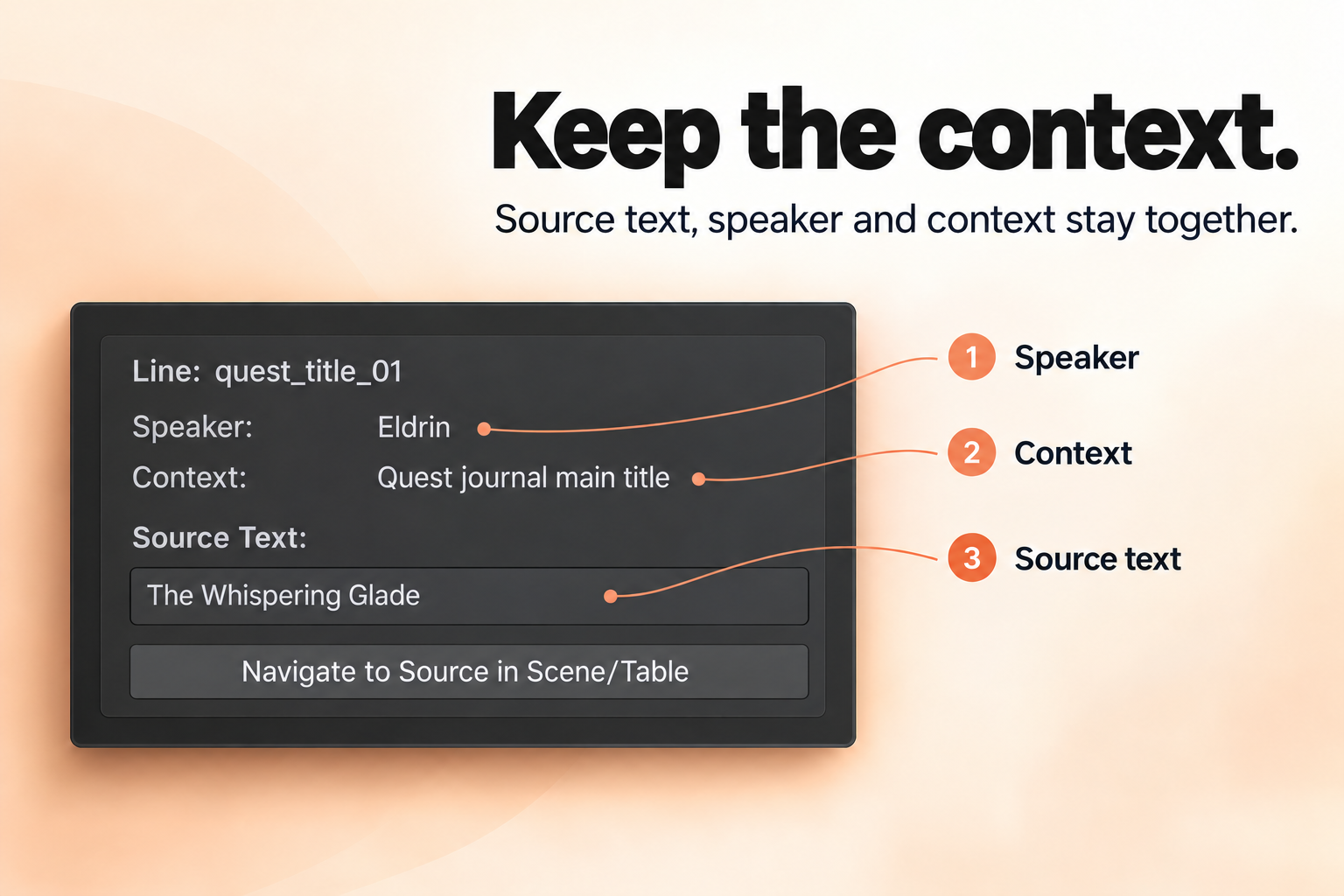
For every target locale, the inspector calls GetOrCreateApproval. This means opening a line creates missing approval records with empty text and state Missing. That is useful for review, but it also means a line can acquire “missing” cells simply because someone inspected it.
Each locale card shows:
- current state;
- Approve if not approved, Reject if approved;
- an editable translation text field.
Editing the field sets the state to Needs Review with the reason Direct edit in Release Board. The edit is applied to the workspace asset and marked dirty.
Manual approval passes the selected source revision hash, but passes
defaultfor the translation hash. Voice entries that depend on the approved translation hash can therefore report a stale translation revision. See Revision Graph.
Audit trail
For each locale with history, the last four events are shown newest-first, with timestamp, old → new state, reviewer, role and rationale.
Bottom bar
- Status text:
Ready. All edits journaled locally. - Audit History opens a workspace summary dialog: total events, latest events across up to eight records.
The status text is a label, not a journal guarantee. Manual edits to the workspace asset are saved through Unity’s normal asset dirty/save flow; the ImportJournal applies only to merge imports.
What the board does not have (1.0.0)
To save you a hunt through the UI:
- no collection selector;
- no defect/voice/capture filter in the sidebar;
- no side-by-side source diff viewer;
- no inline microphone/camera badges;
- no per-line character limit display;
- no reviewer identity picker (labels are fixed strings in this window);
- no glossary editor tab;
- no release comparison tab.
These are scope boundaries, not hidden settings. See Limitations.
A practical review pass
- Filter to Stale and read the impact for each line.
- Filter to Needs Review and approve or reject with the locale cards.
- Search for a screen or system prefix, then inspect rather than batch-approving blindly.
- Open Voice & Subtitles for stale takes and CPS failures.
- Open Release Gates and export the report before tagging the release.
Next: Guided Setup.